Steady 2.9: customizable Trends
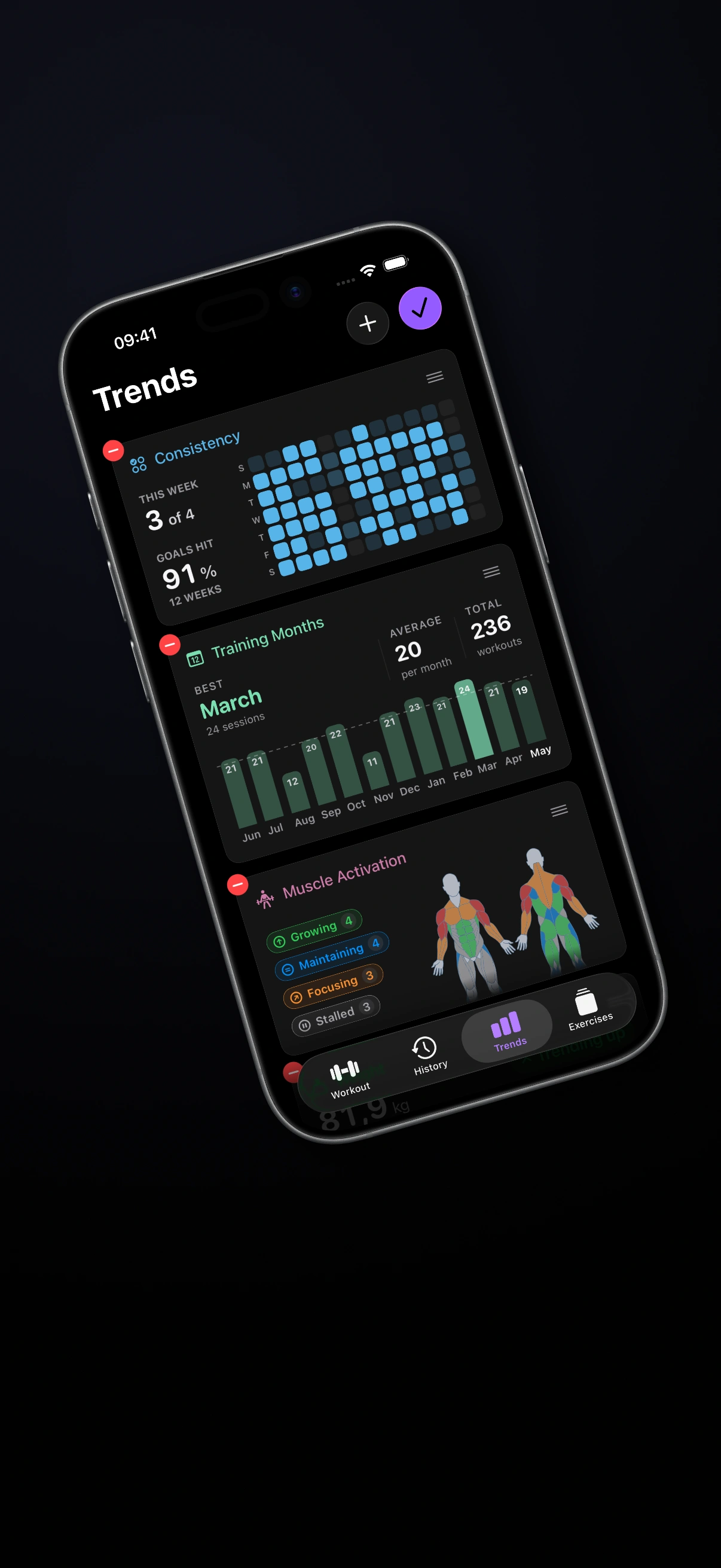
Steady 2.9 makes your progress screens more personal, your workout history more useful, and your Apple Watch more useful while your iPhone stays nearby.
The headline is the new customizable Trends dashboard. You can reorder widgets, remove the ones you do not need, bring hidden ones back later, and shape the tab around the progress signals that matter most to your training.
New Features
Customizable Trends and new widgets
Trends is now a widget dashboard instead of a fixed screen. Enter edit mode to reorder cards, remove what is not useful right now, restore the default layout, or add hidden widgets back when your focus changes.
This is useful because progress does not mean the same thing every block. During a strength phase, you may care most about volume, progression, and muscle activation. During a consistency reset, goal progress and streaks might deserve the top of the screen.
The new widgets are meant to make Trends feel more like your training dashboard. Training Days, Training Hours, and Training Months show when you train most over time. Consistency and Streaks bring weekly goal progress, current streaks, record distance, and deeper streak navigation into Trends. Weight shows your latest body weight, whether the recent direction is up, down, or stable, and how it has changed across recent entries.
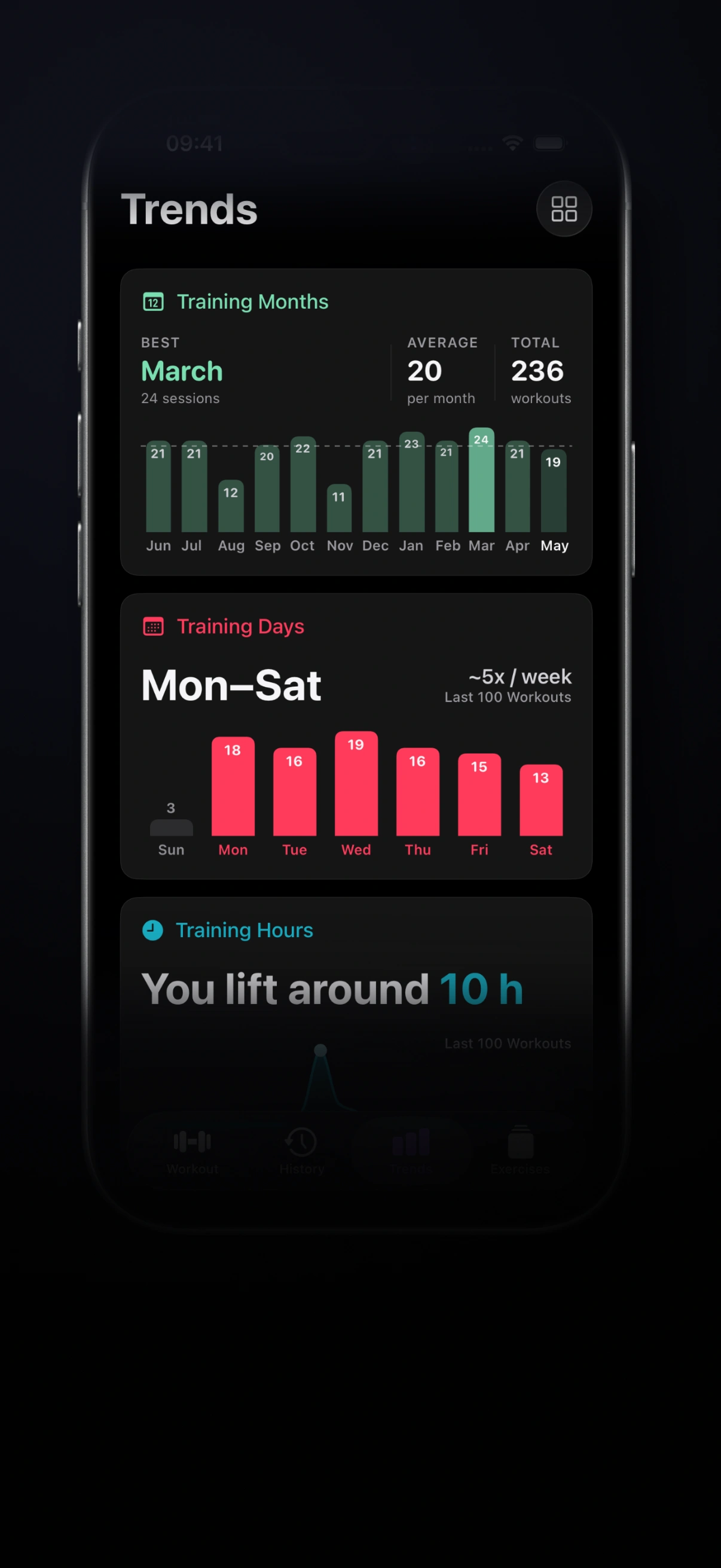
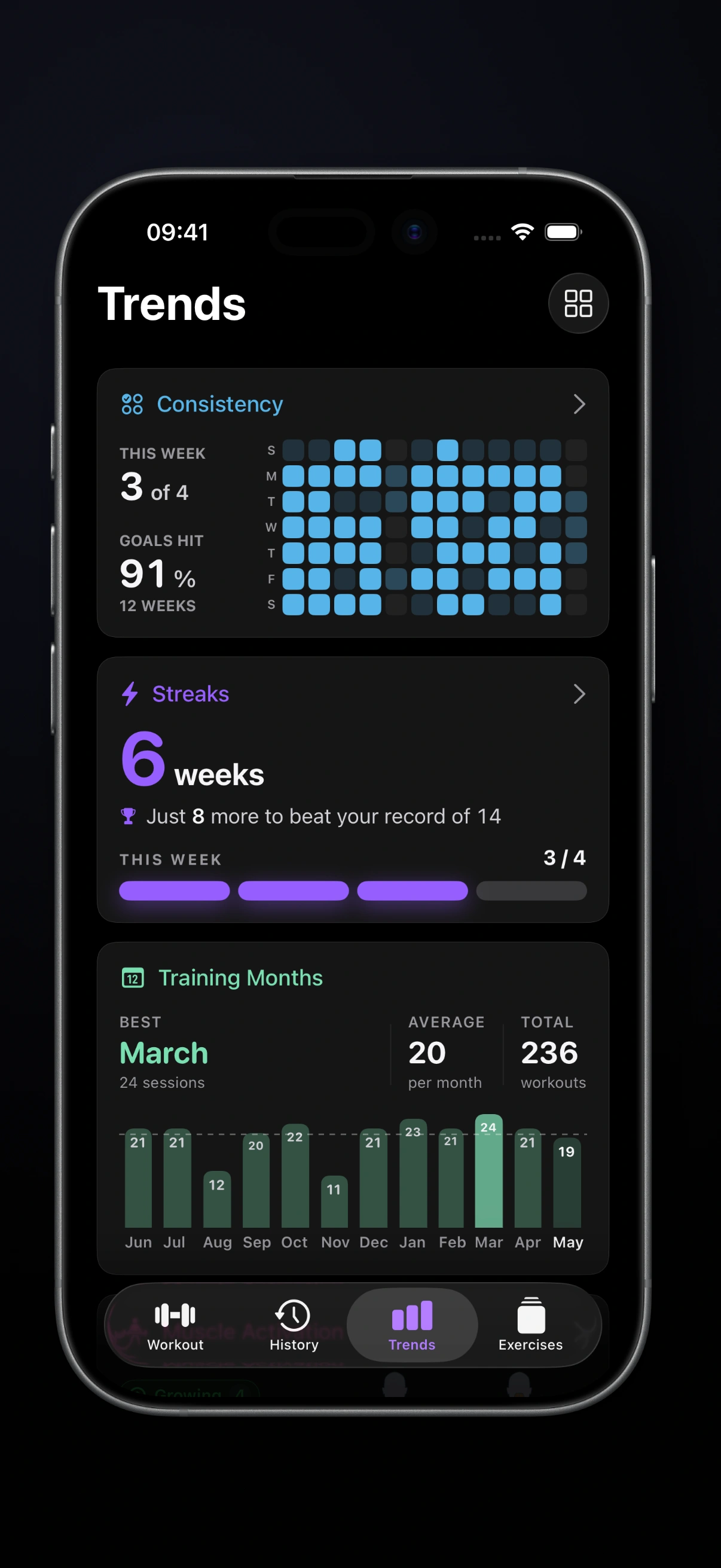
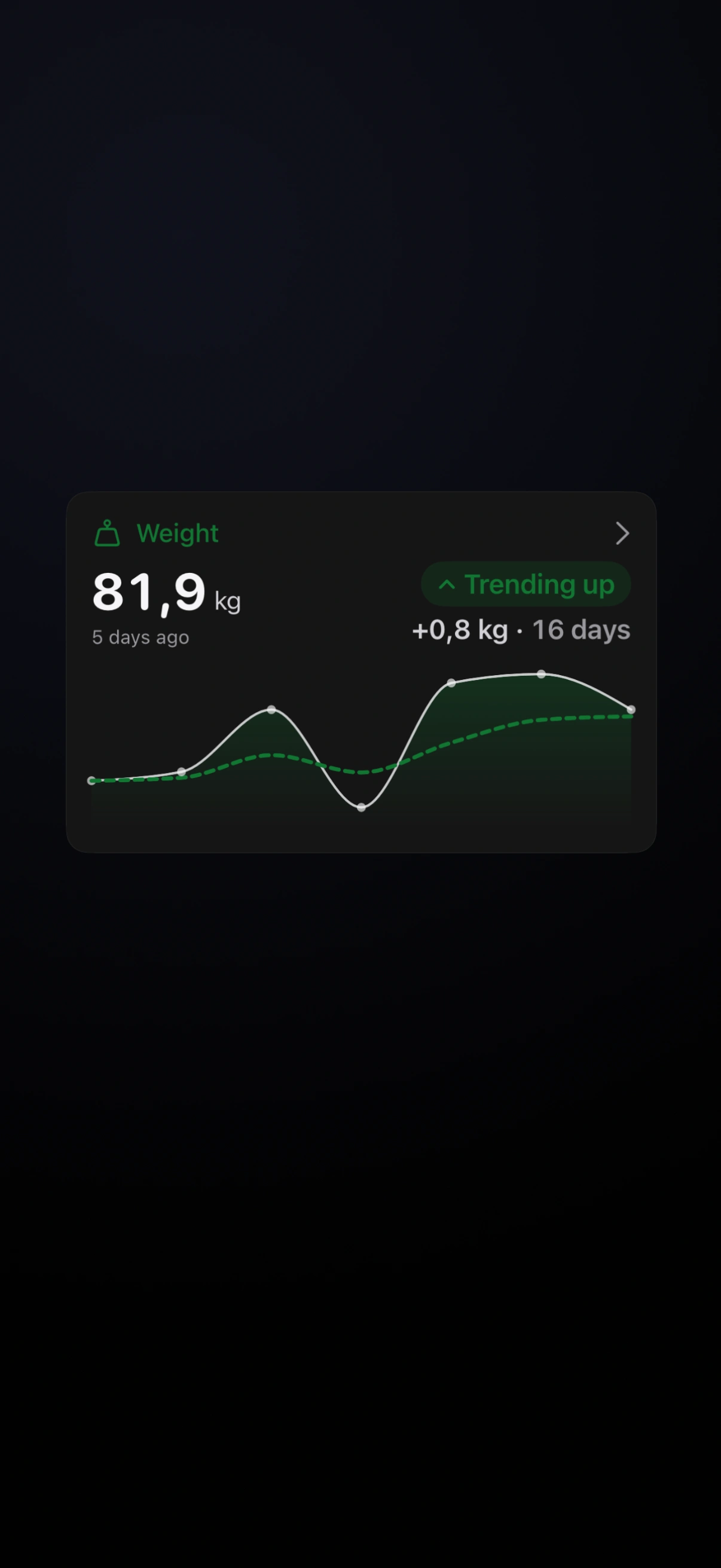
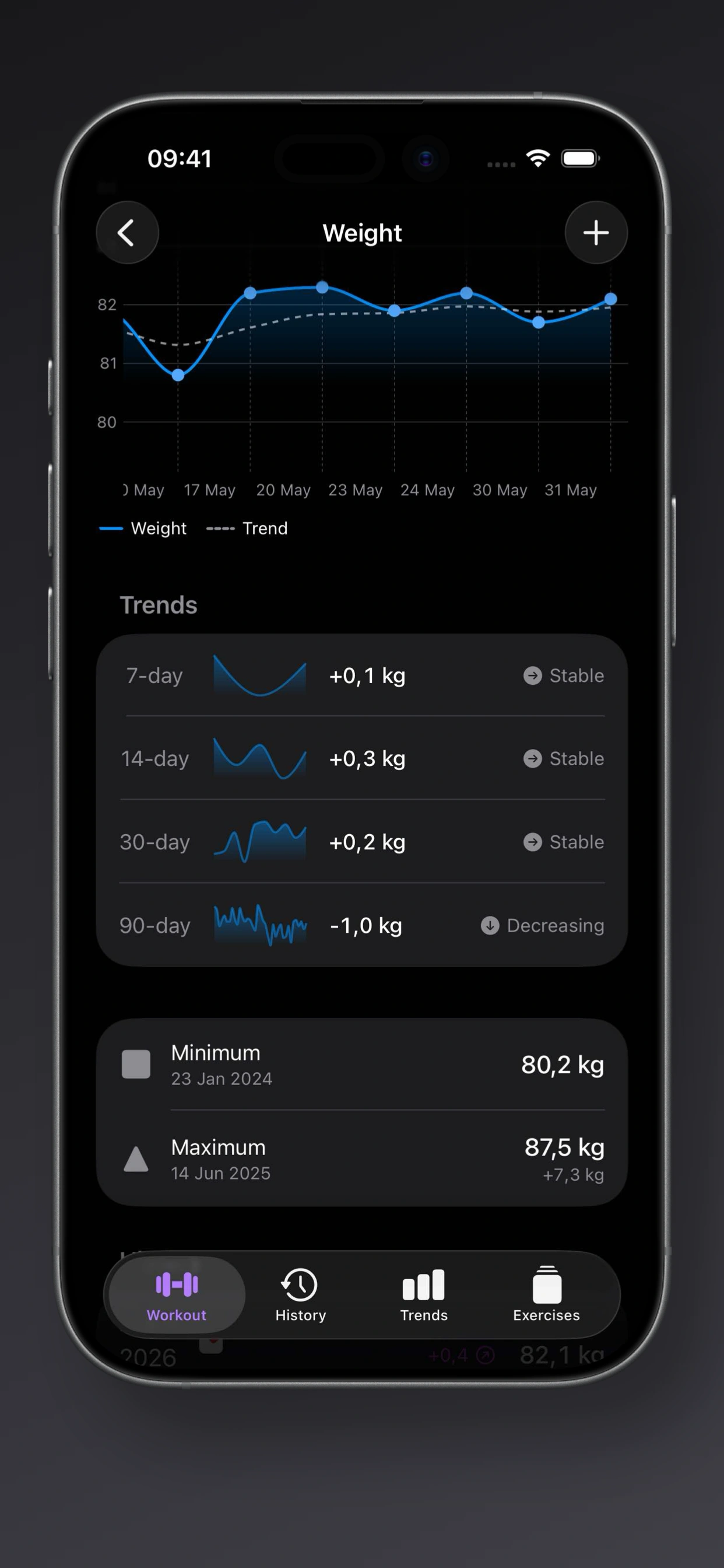
Together, these widgets make progress easier to read without forcing every lifter into the same layout. Put consistency at the top when showing up is the goal. Put training volume and activity widgets first when you are watching workload. Keep body weight nearby when nutrition is part of the plan.
Apple Watch workout controls and exercise details
Apple Watch can now do more without making you take your iPhone out of your pocket. Start routines from the Watch, finish a workout, or discard an active session from your wrist.
During an active Watch workout, tapping the exercise name can open exercise details with muscles, equipment, a thumbnail, and step-by-step instructions.
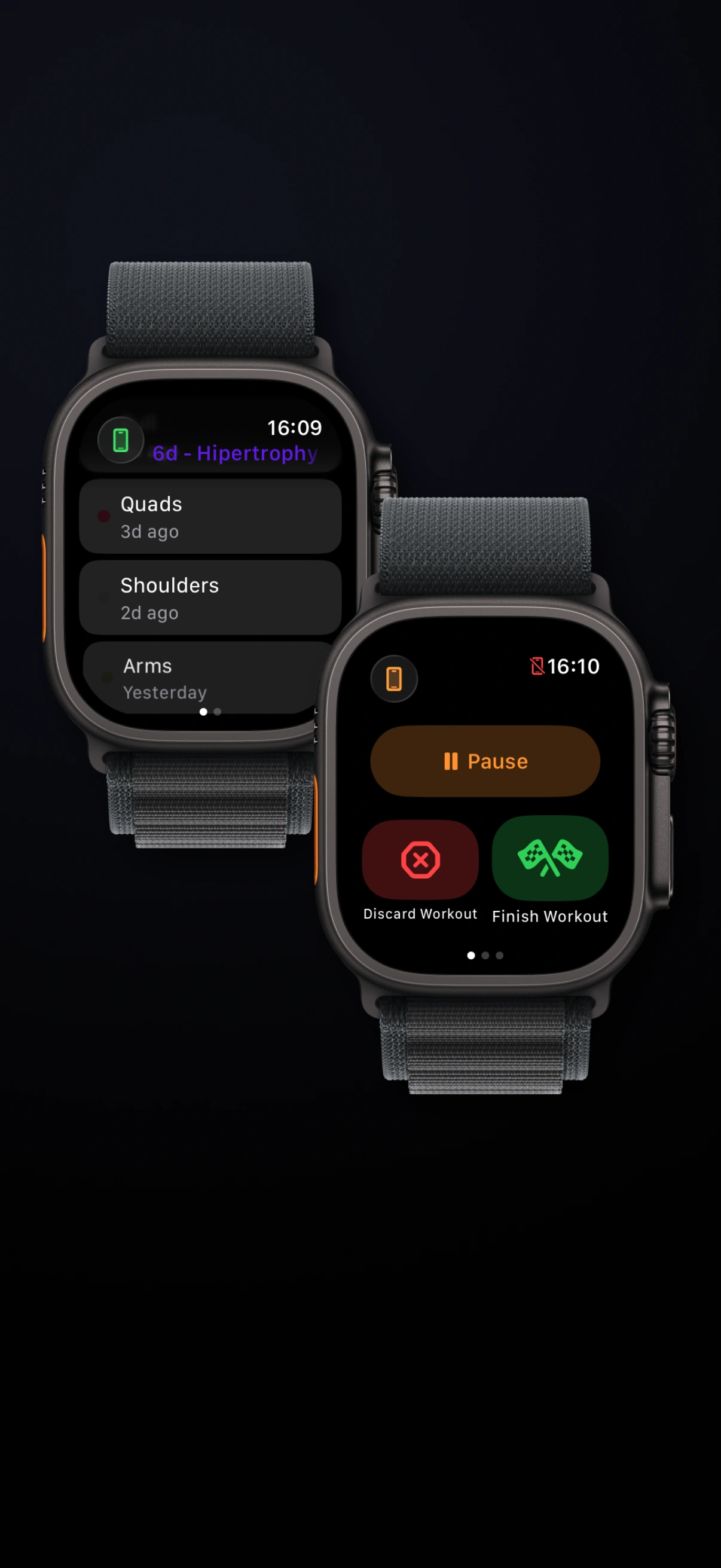
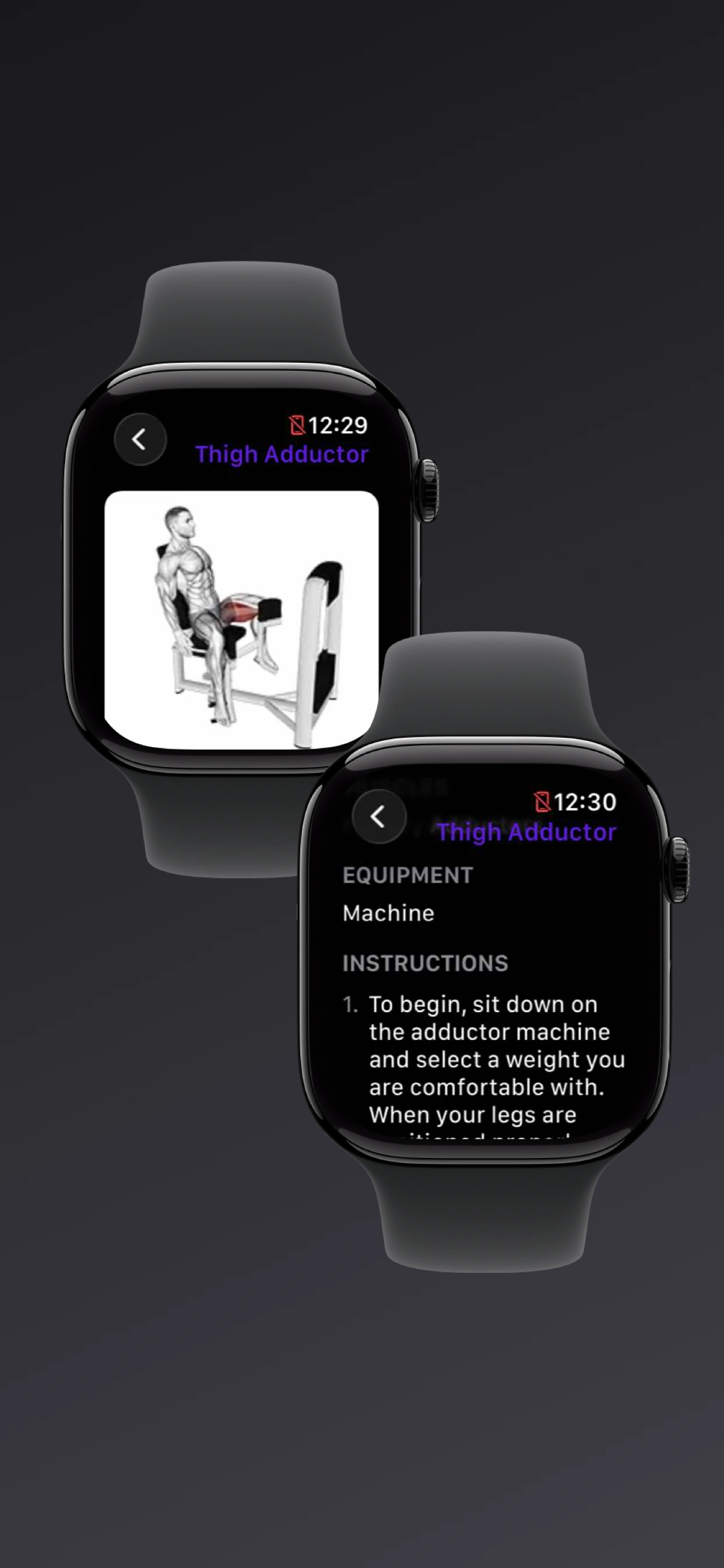
This is one of those changes that matters most mid-session. If your iPhone is in your pocket, in your nearby gym bag, or just somewhere inconvenient to grab, the Watch can handle the bigger workout actions now. And when you need a quick reminder of what a movement targets or how it is performed, especially for accessories you do not run every week, the details are right there.
Richer workout details and heart-rate context
Workout details now pair heart-rate ranges with an exercise timeline, so you can see what you were doing as your heart rate changed.
Workout summaries and session details also show clearer metric cards, previous-session comparisons, effort editing, personal records, and progressions in one place.
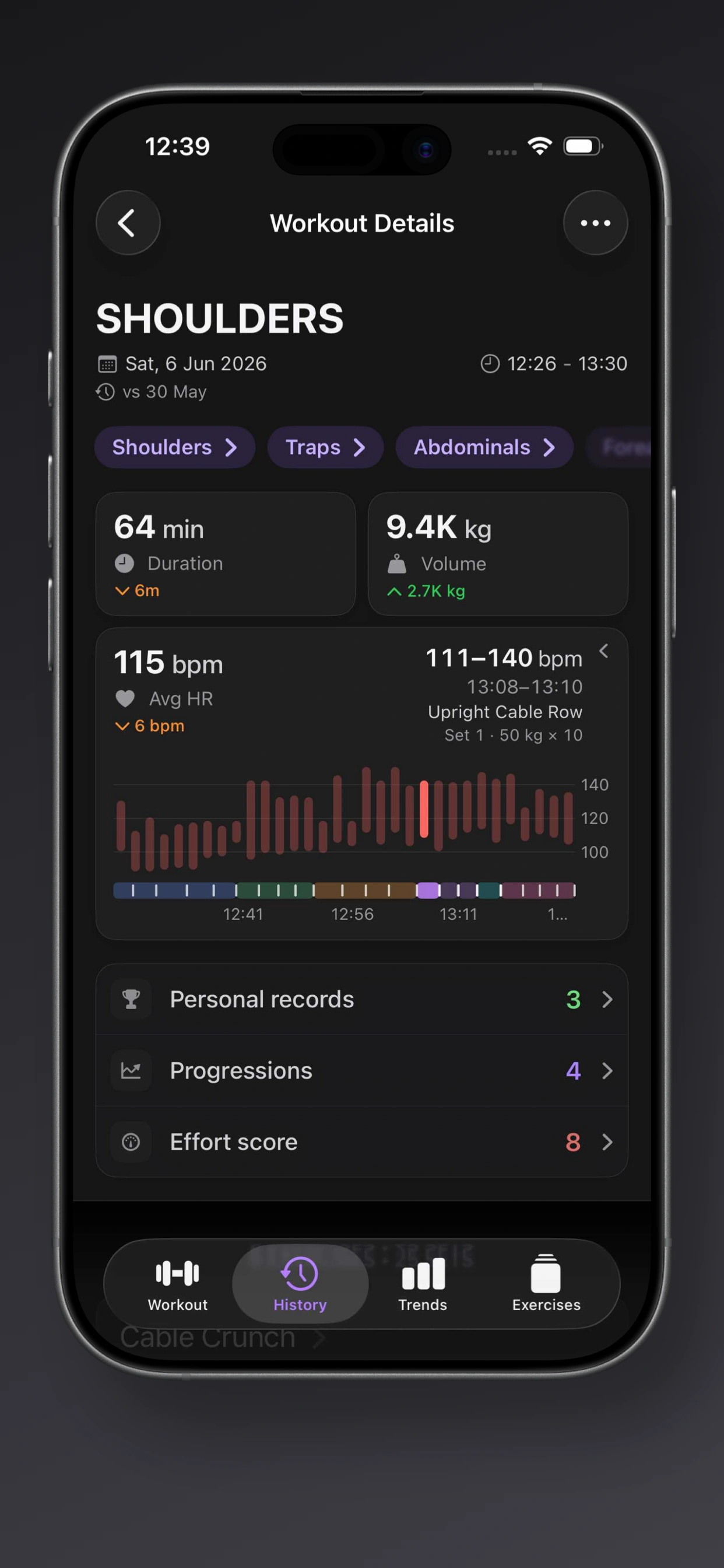
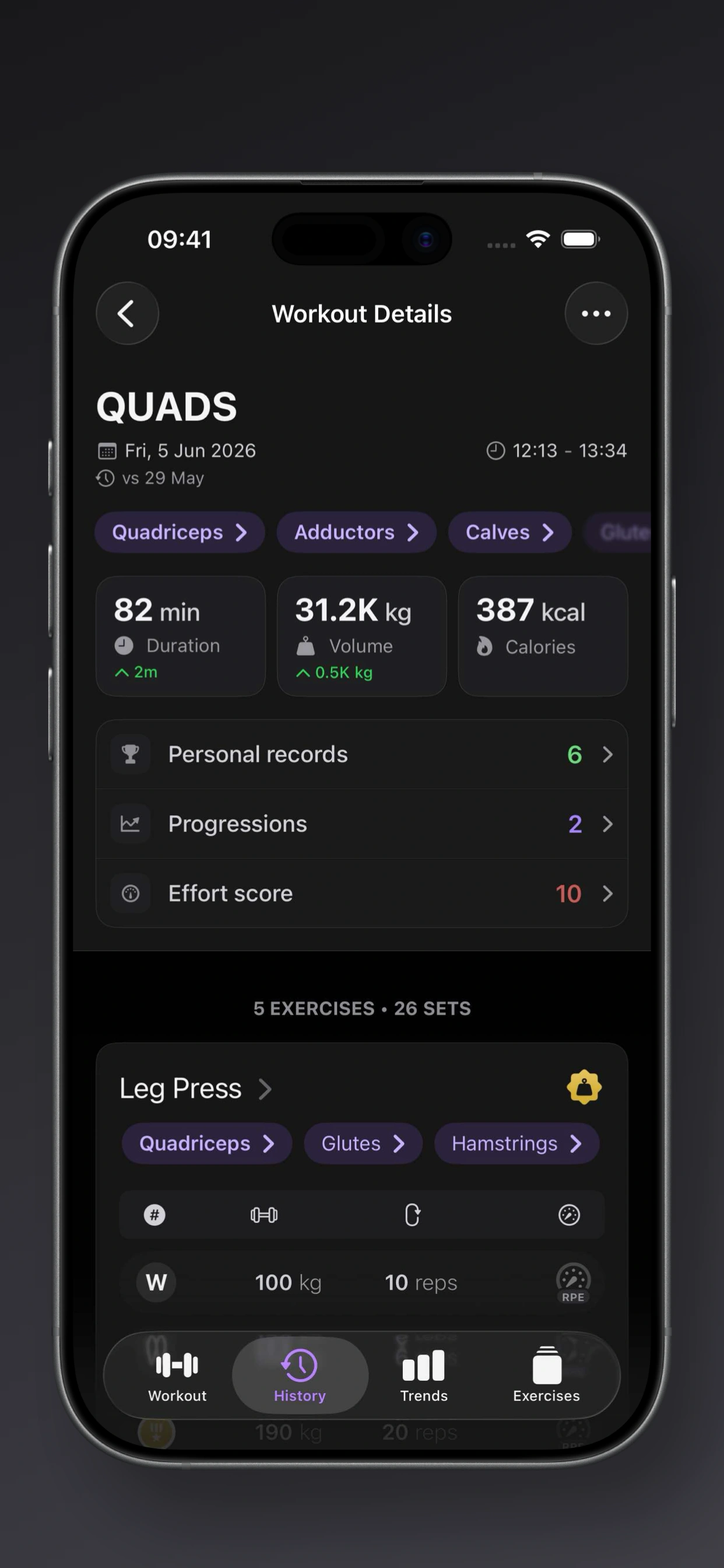
This turns heart rate from a disconnected metric into session context. You can scrub through a workout, see the exercise blocks, and connect harder sections, longer rests, and conditioning spikes to what was actually happening in the session.
Default Next Target and progression insights
Steady now lets you choose how routine targets update after a workout: Smart Progression, Repeat last performance, or Keep routine unchanged. Progression Review details now also compare your targets with what you actually did, making it clearer where you landed relative to the goal.
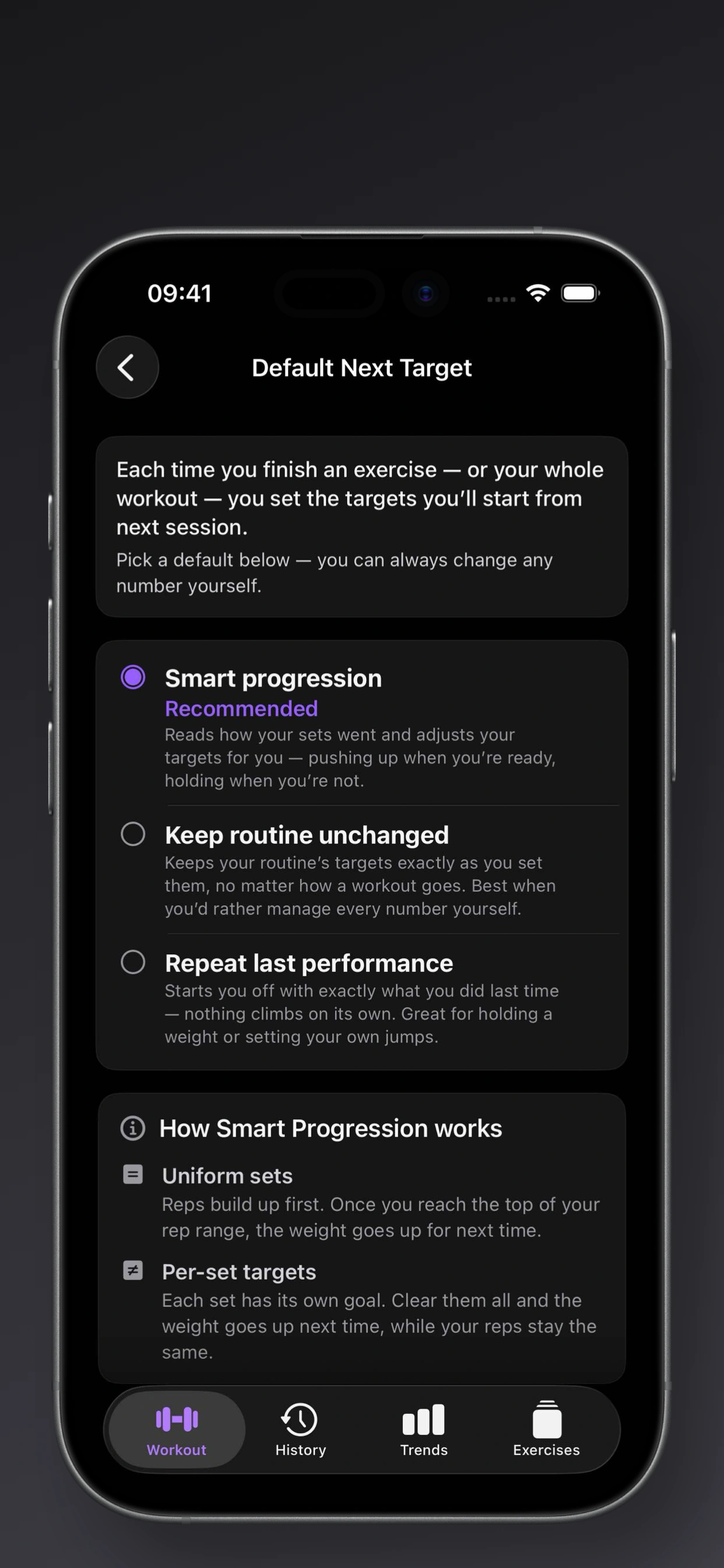
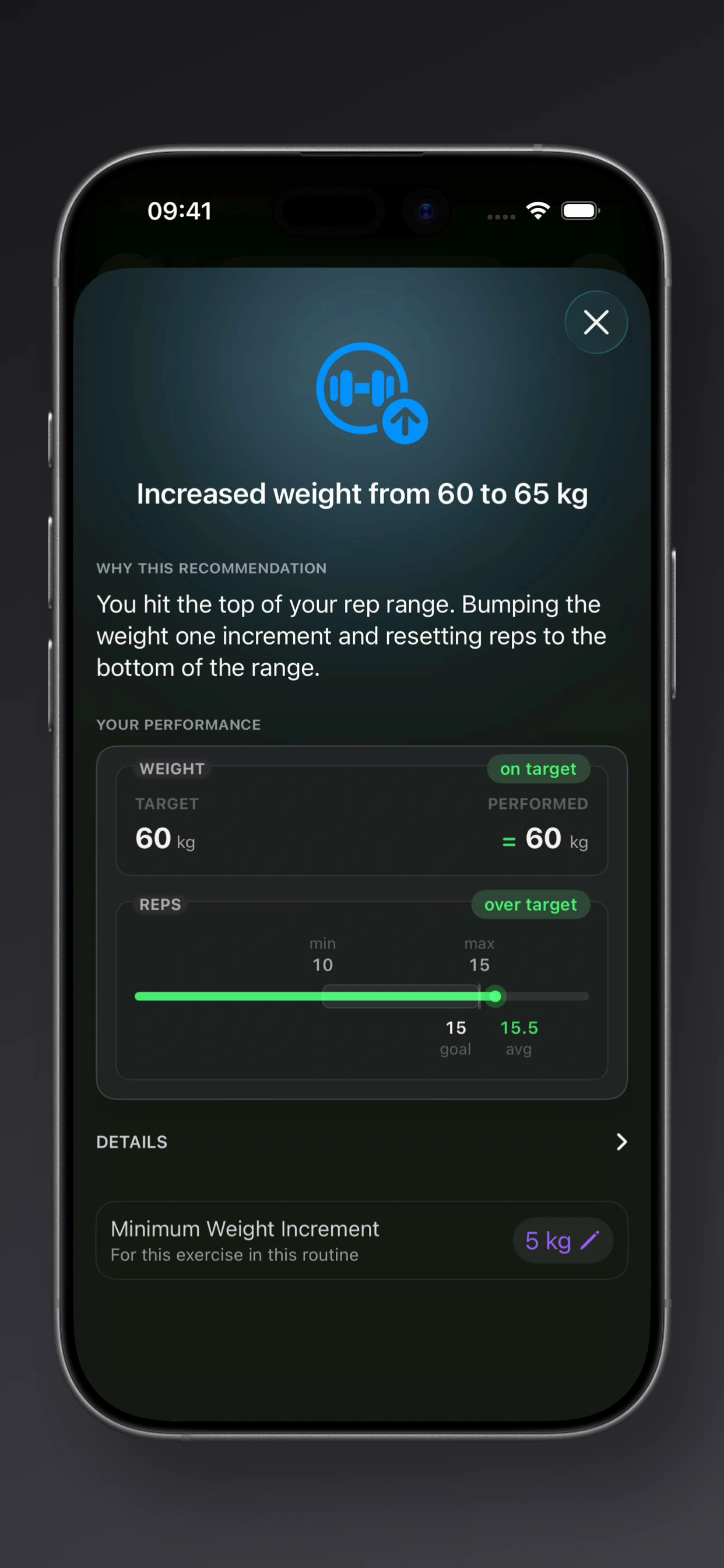
Smart Progression still works when you want Steady to make the next-step call. Repeat last performance is better when you want the next session to start from exactly what you did today. Keep routine unchanged is for lifters who prefer to manage every number themselves. For advanced exercises, Steady can also offer one-tap “Use performed” choices for per-set weight, reps, or duration targets.
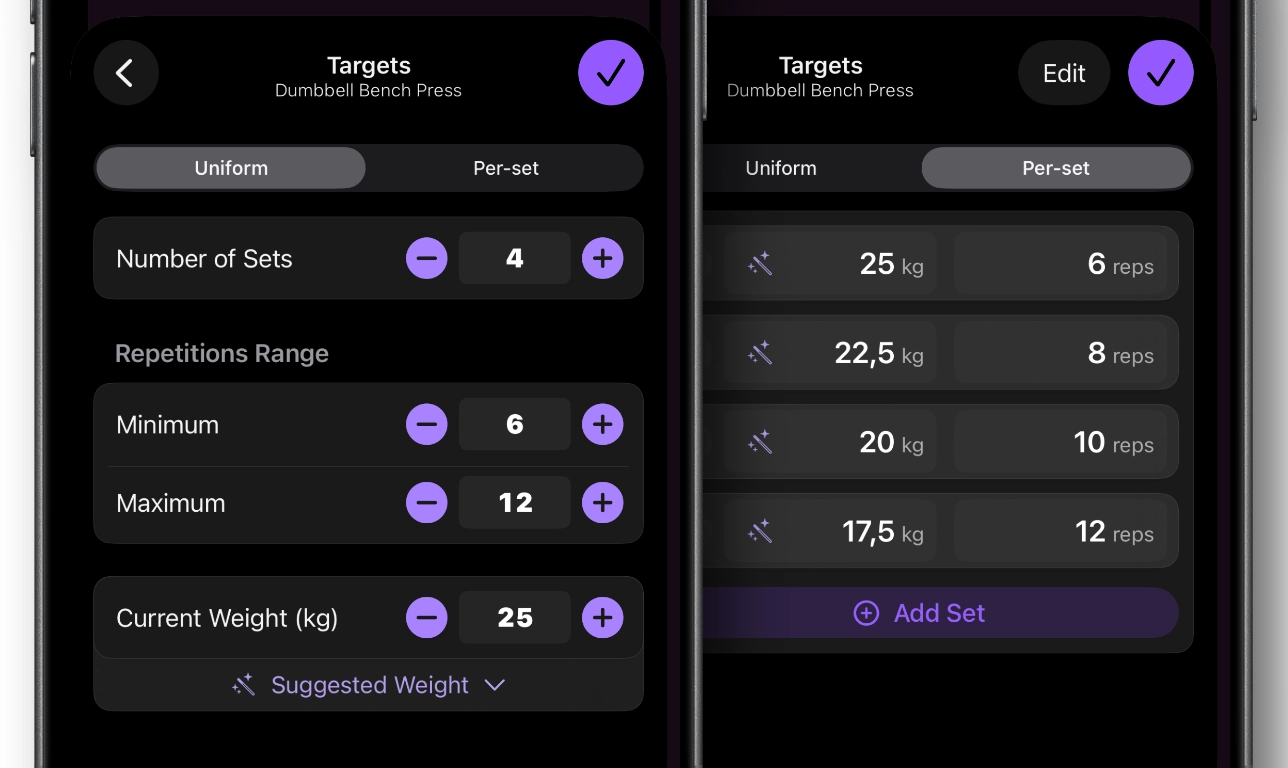 Default Next Target pairs especially well with per-set targets when each set has its own plan.
Exercise Note Link Previews
Pasted links in exercise notes now show rich preview cards with a thumbnail, title, and source when available.
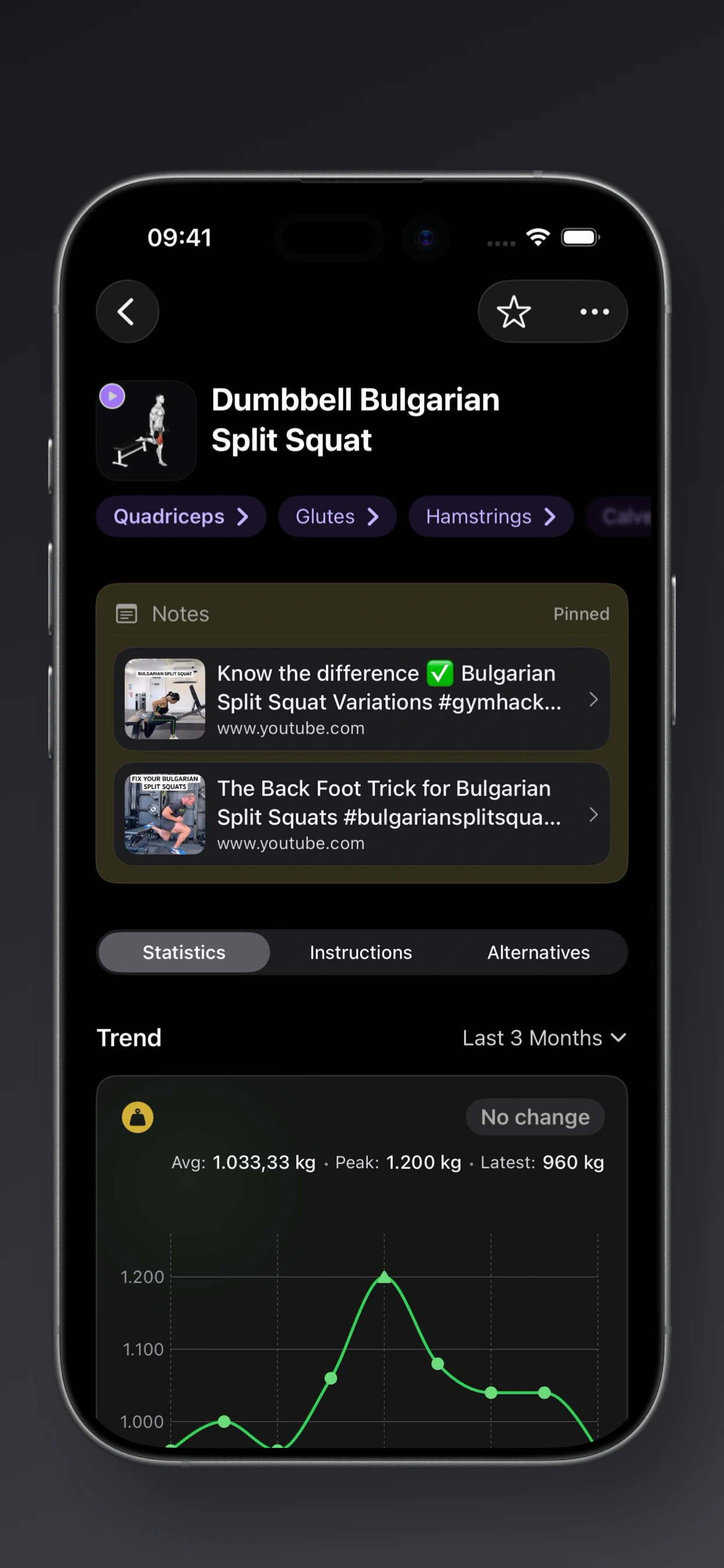
If you save technique videos, setup reminders, or external cues inside an exercise note, those links are easier to recognize later. The note stays practical instead of turning into a wall of raw URLs.
Improvements
Smarter widgets, cleaner home screen, and faster exercise picking
Volume, calories, and duration widgets in Trends now show how your current week compares to your usual training.
The Streaks and Up Next home screen widgets have a cleaner, more consistent look.
The exercise list now has a Performed filter that shows only exercises you have logged before.
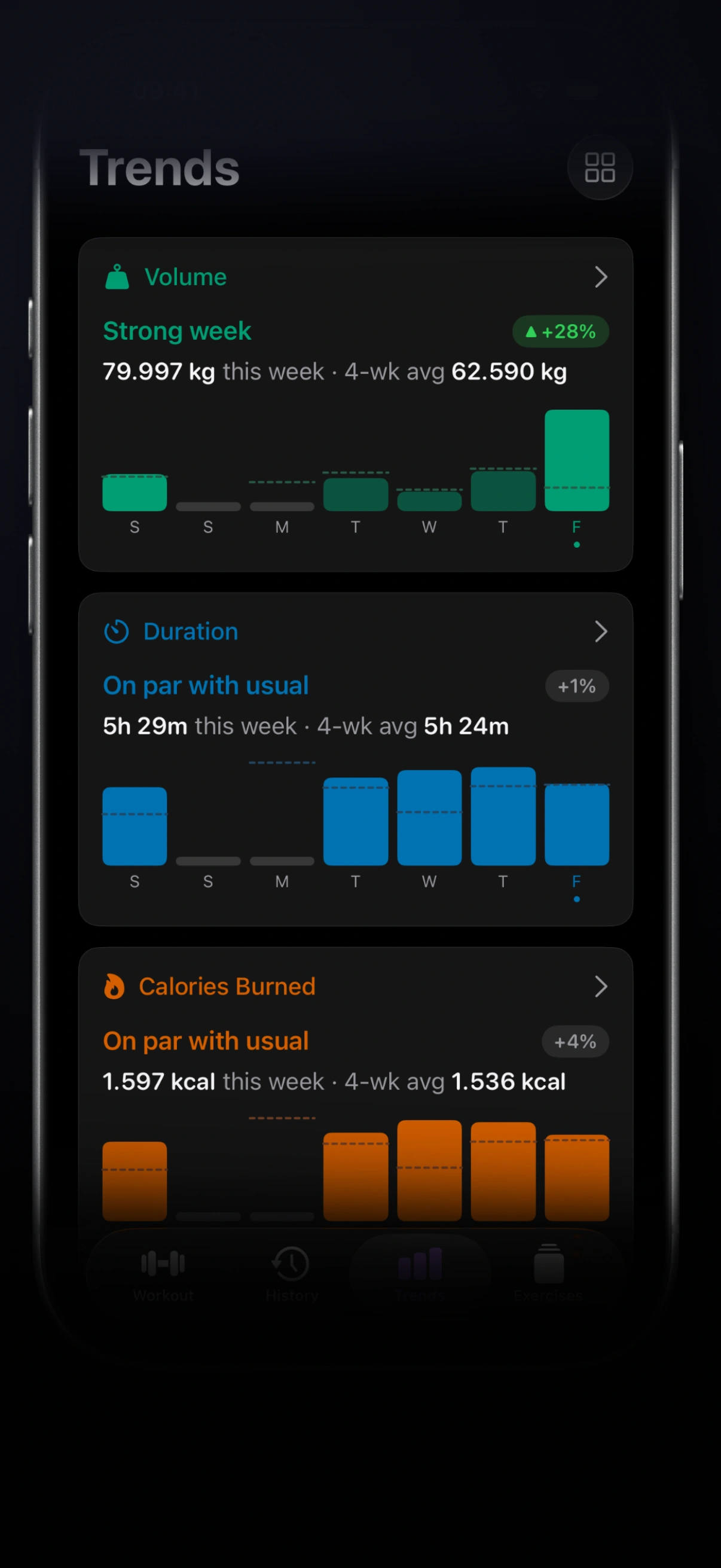
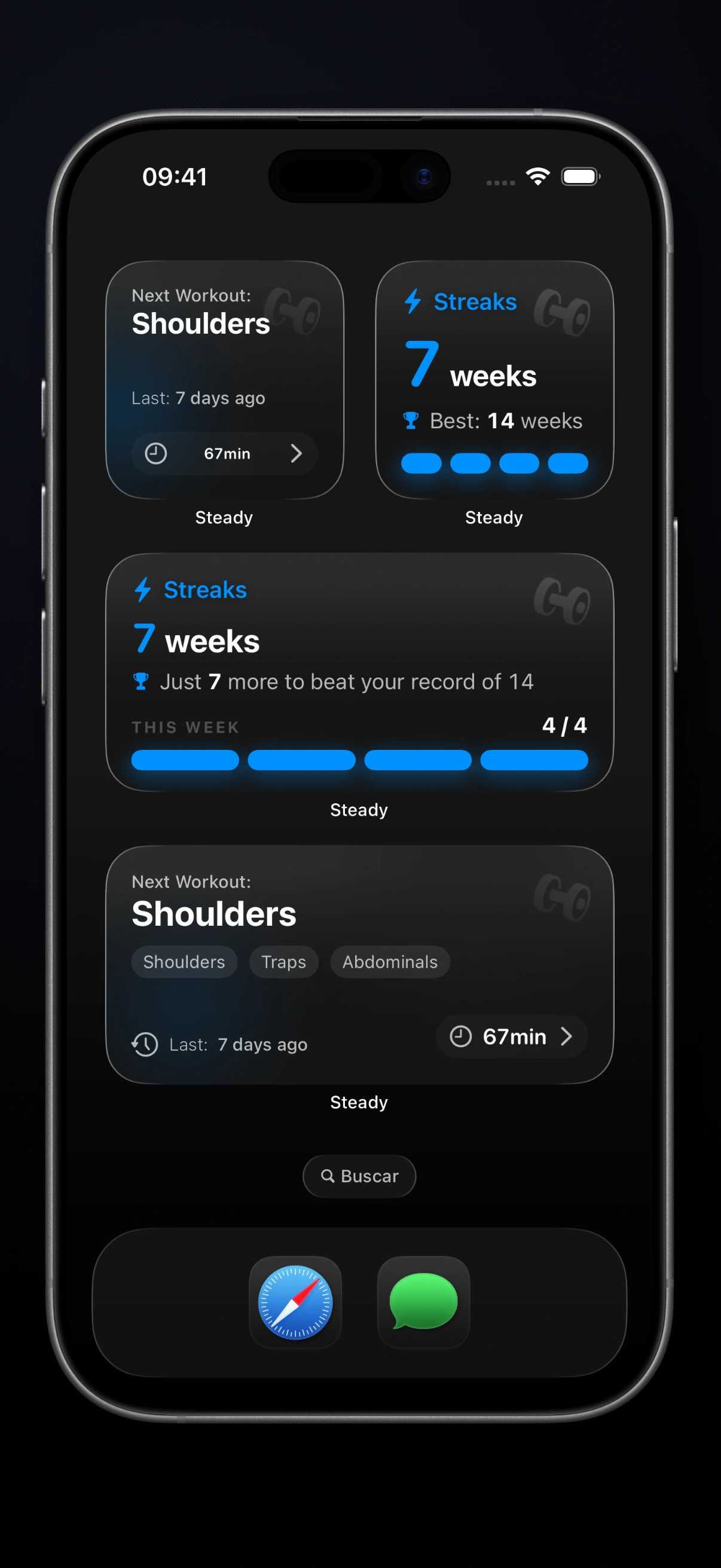
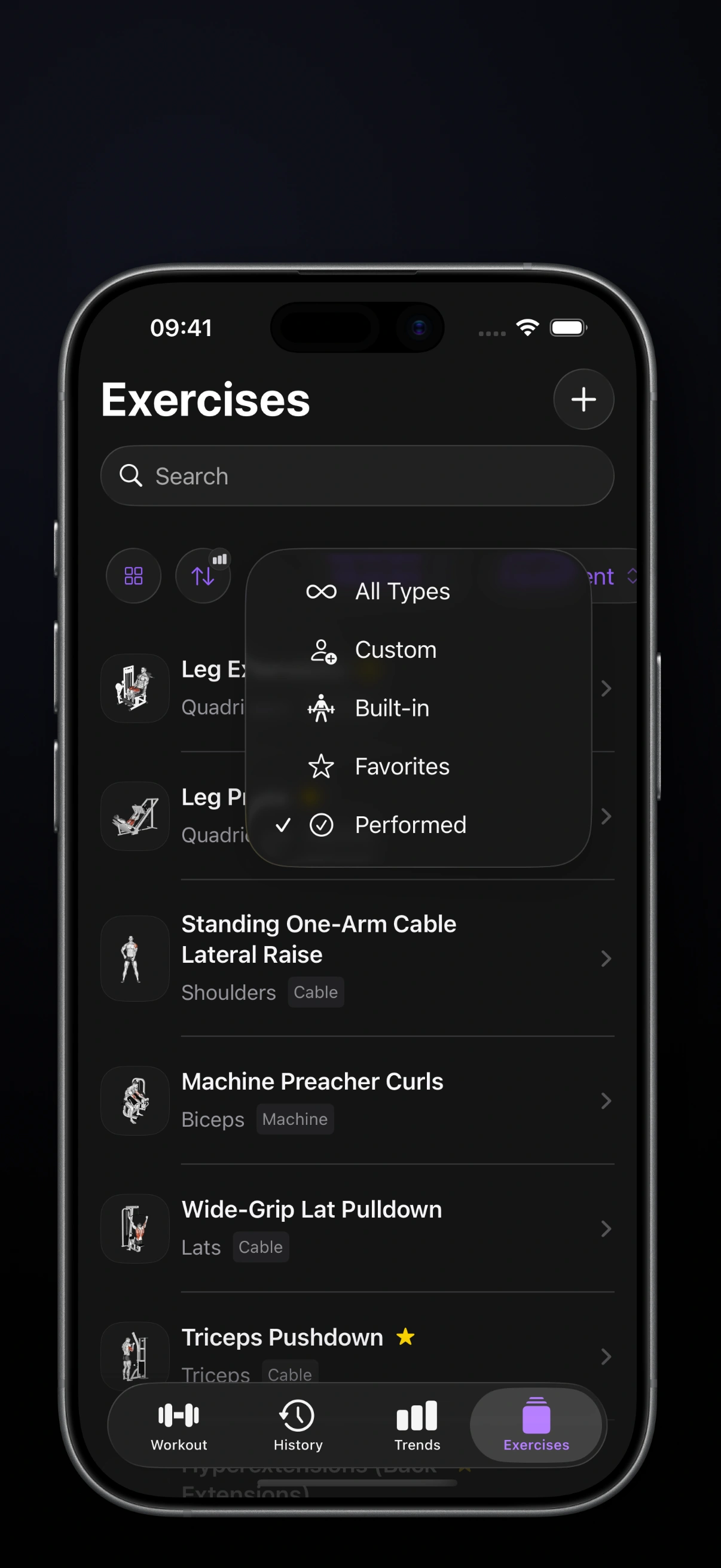
A raw total is useful, but a comparison is better. Seeing whether this week is strong, normal, or below your usual gives the number more meaning. The smaller widget states also got copy and layout polish so they fit better at a glance. And when you are building a routine, Performed helps you find familiar movements first, especially when you remember doing an exercise but not exactly what it was called.
Fixes and Polish
- More reliable Watch workouts, Health syncing, effort updates, and session edits.
- Clearer rest-timer tips, Watch workout tips, deload recommendations, workout tips, reminders, and completion messages.
- Better saved preference screens and more reliable updates across settings, history, routines, and workout screens.
- Improved typography, bold emphasis, streak labels, layout behavior, and interface polish across recent workout and progress screens.
Update to 2.9 and customize Trends before your next session. Put the widgets you actually care about at the top, then check your workout details after training to see the richer history view in action.
Stay Steady.
Ready to start applying progressive overload?
Ditch the spreadsheets and complex notes. Join thousands of lifters who use Steady to focus on the workout, track their progress, and automatically know when to add weight.
Download Free for iPhone