How to Customize Your Workout Trends
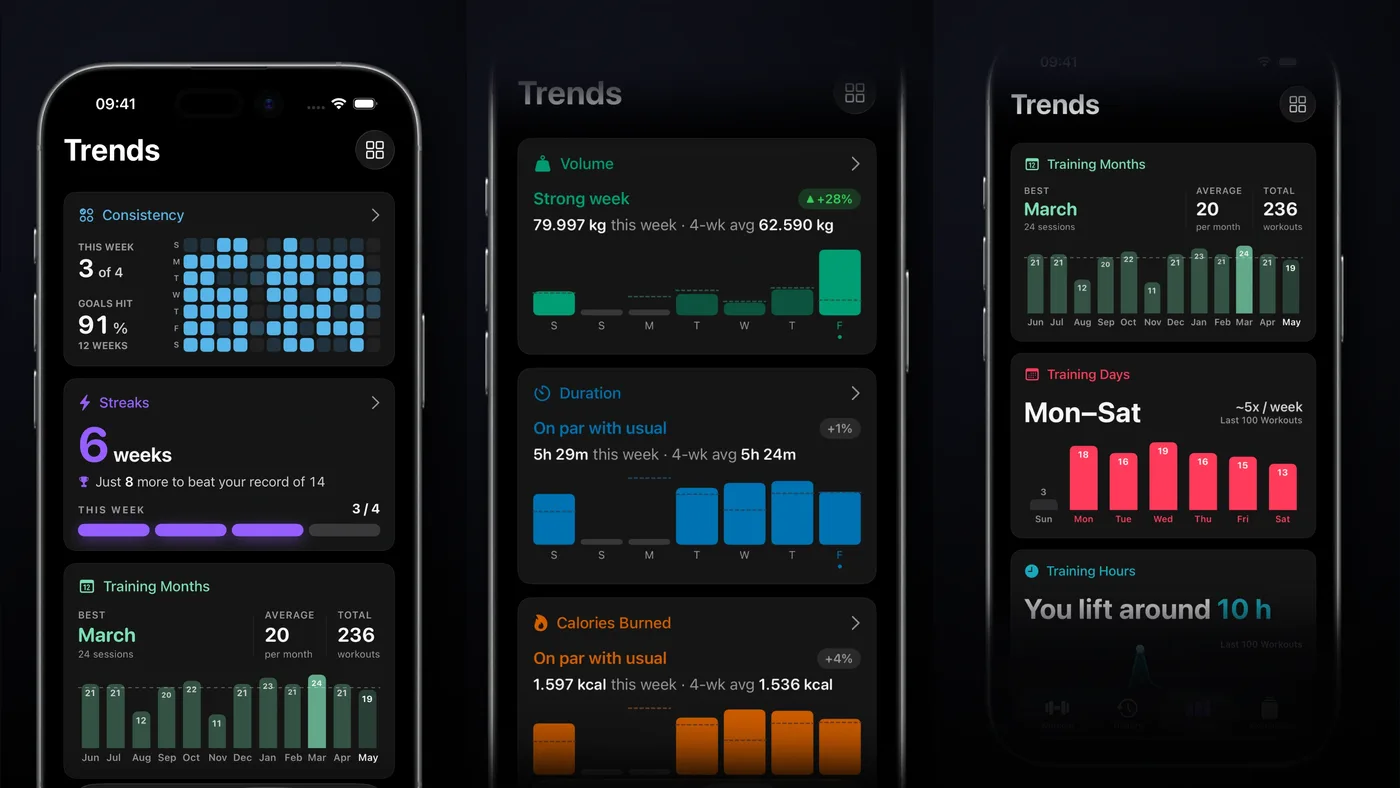
The Trends tab in Steady turns the workouts you log into a view of how your training changes over time. It can show patterns in consistency, volume, workout duration, muscle activation, training days, body weight, and more, so you can understand what is actually happening beyond a single session.
But the most important metric is not the same for every person or every phase of training. Someone rebuilding consistency may care most about completed workouts and training days. Someone managing a hypertrophy block may need volume and muscle activation near the top. A lifter working toward a body-weight goal may want weight trends beside training consistency.
The best way to customize Steady’s workout Trends is to put the metrics that answer your current training question first. More data does not automatically produce a clearer decision. Choose three or four relevant trends, give them priority, and let the rest stay available without competing for attention.
Start with one training question
Before moving any widget, write down the question you want the dashboard to answer.
Useful questions include:
- Am I training as consistently as I planned?
- Has my weekly workload increased too quickly?
- Which days and times do I actually train most often?
- Is my body-weight trend moving in the intended direction?
- Are the muscles I want to prioritize receiving enough work?
The question determines the layout. A lifter rebuilding a habit needs different information from someone managing a high-volume hypertrophy block.
 Review trends to answer a training question, not just to browse numbers.
Choose the right widgets for your goal
You do not need one permanent layout. Your priorities can change with the training phase.
For consistency
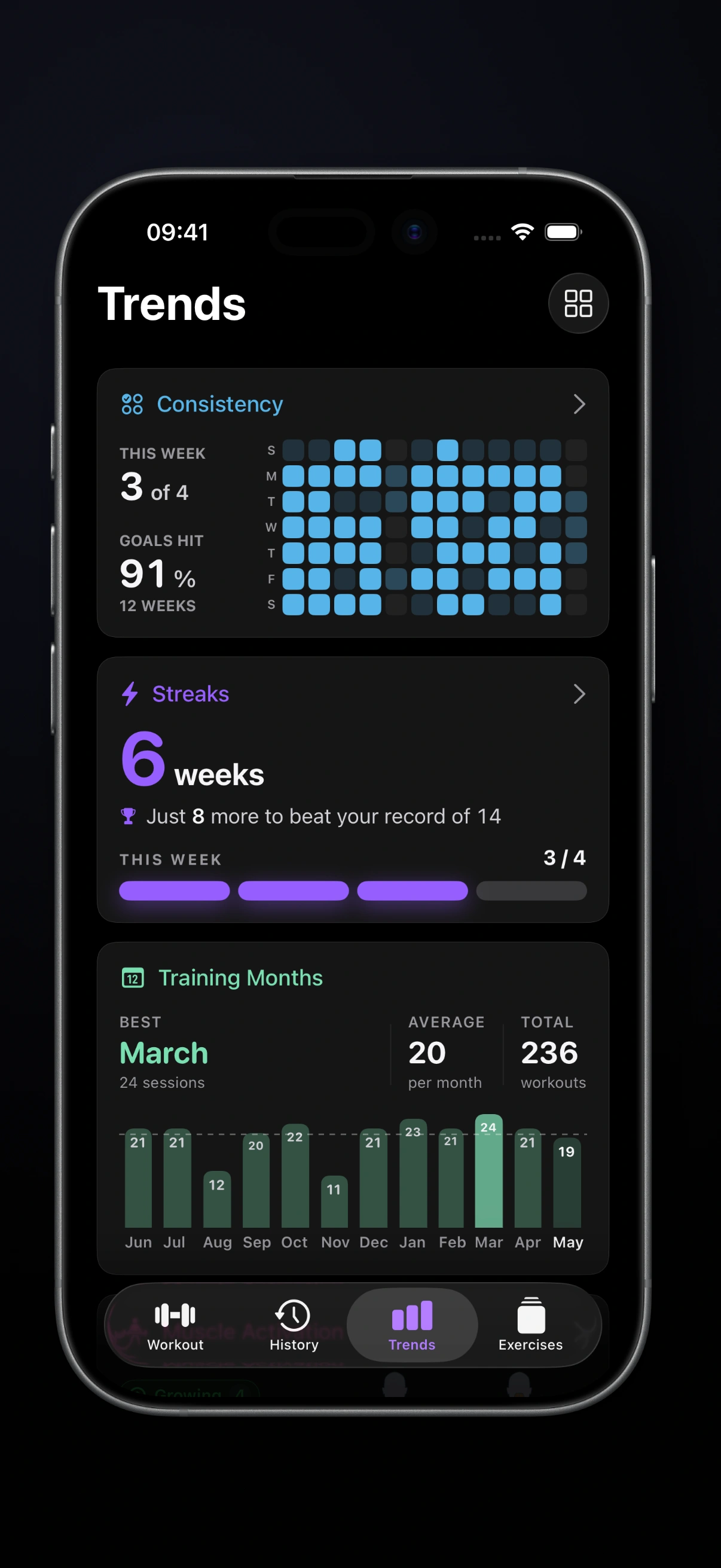
Place Consistency, Streaks, and Training Days near the top. Together, they show whether sessions are happening, how the current run compares with your recent pattern, and which days tend to work in real life.
This layout is useful when returning after a break or trying to make a new schedule stick. The first goal is not maximizing every metric. It is establishing a repeatable week.
For workload and recovery
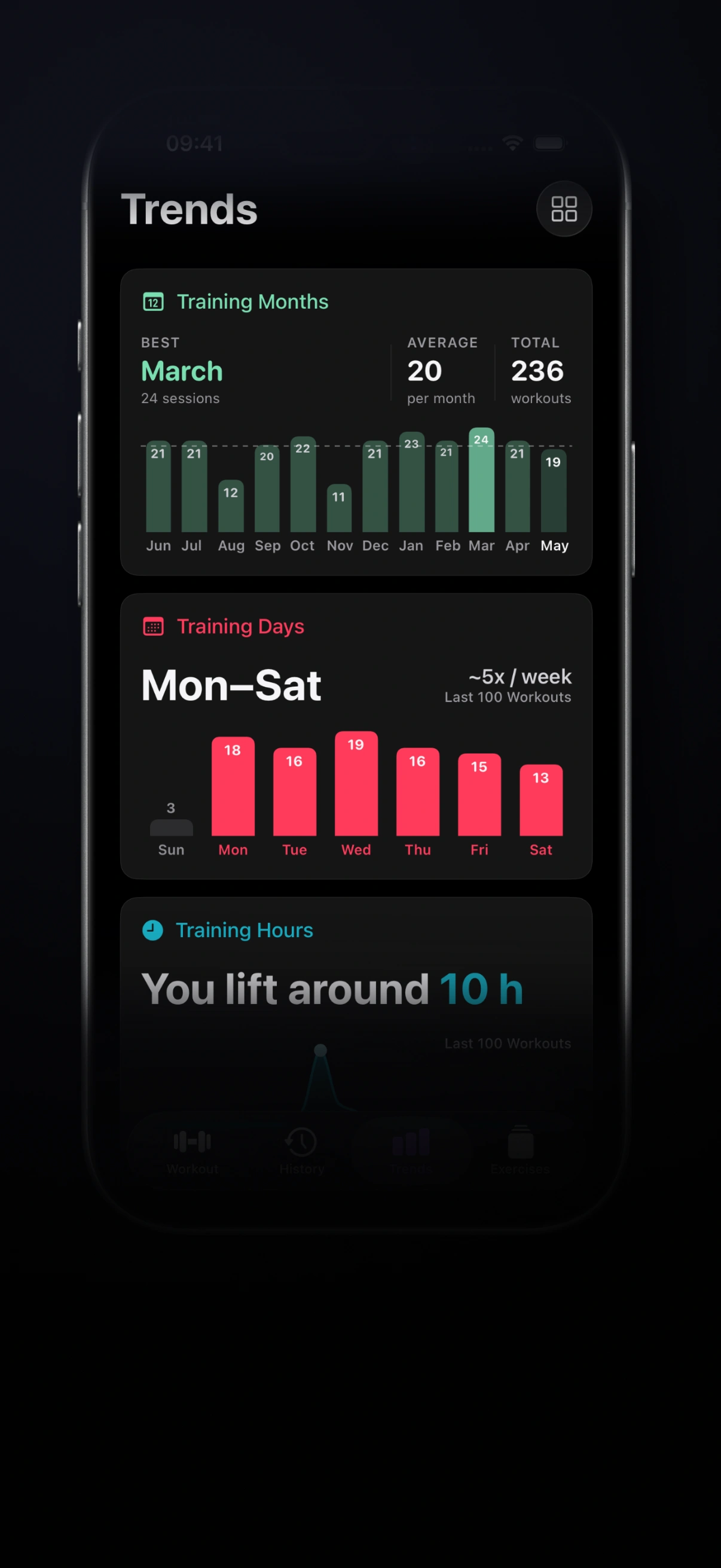
Prioritize Volume, Duration, and Muscle Activation. These give different views of training stress: how much work you logged, how long sessions took, and where that work landed.
No single card can diagnose fatigue. But a sudden rise in volume and duration, combined with poorer performance and low energy, is a useful reason to review the week rather than blindly adding more work.
For a body-weight goal
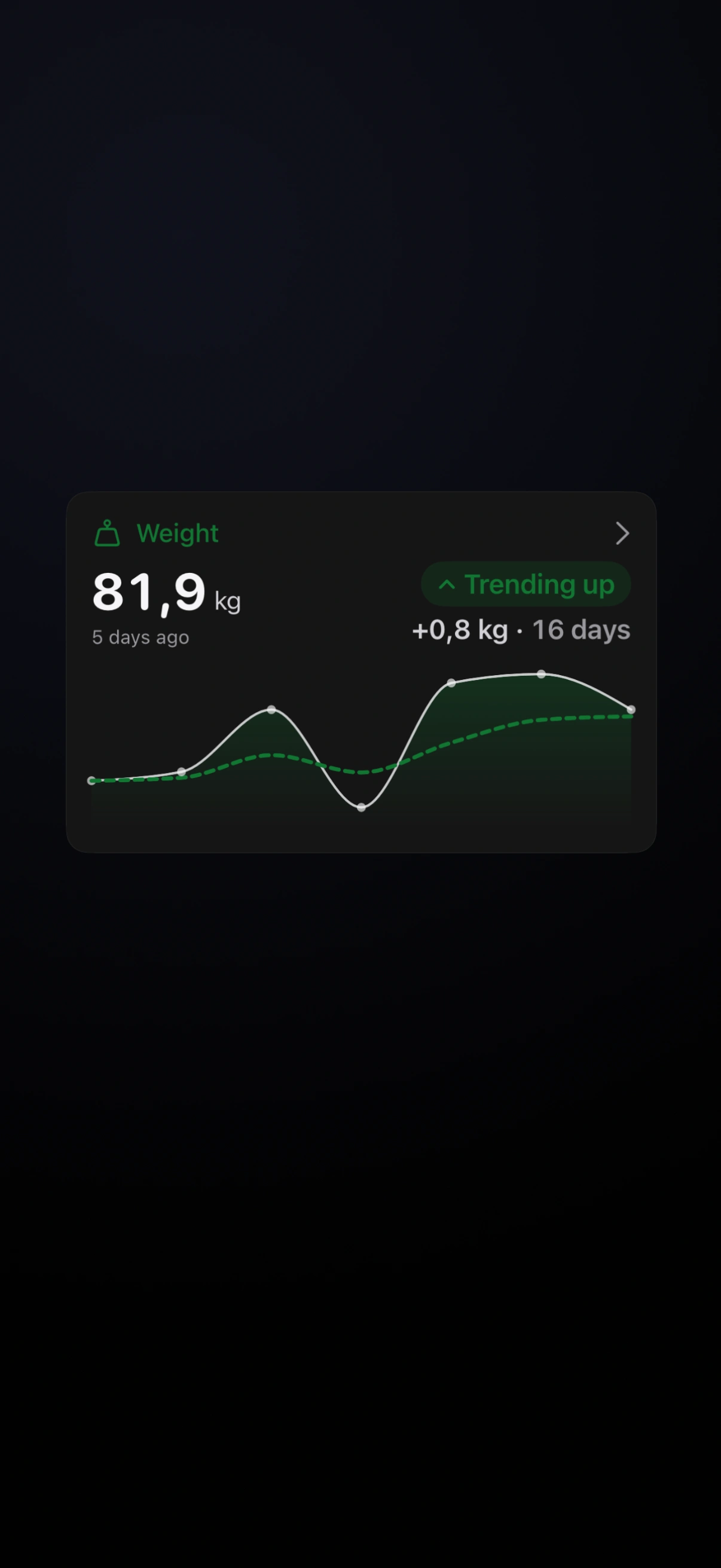
Keep Weight visible alongside Consistency and one workload metric. Body weight is easier to interpret when you can see whether training behavior stayed stable.
Daily scale changes are noisy. Look at the recent direction and compare it with several weeks of consistent behavior before changing calories or training.
How to customize Trends in Steady
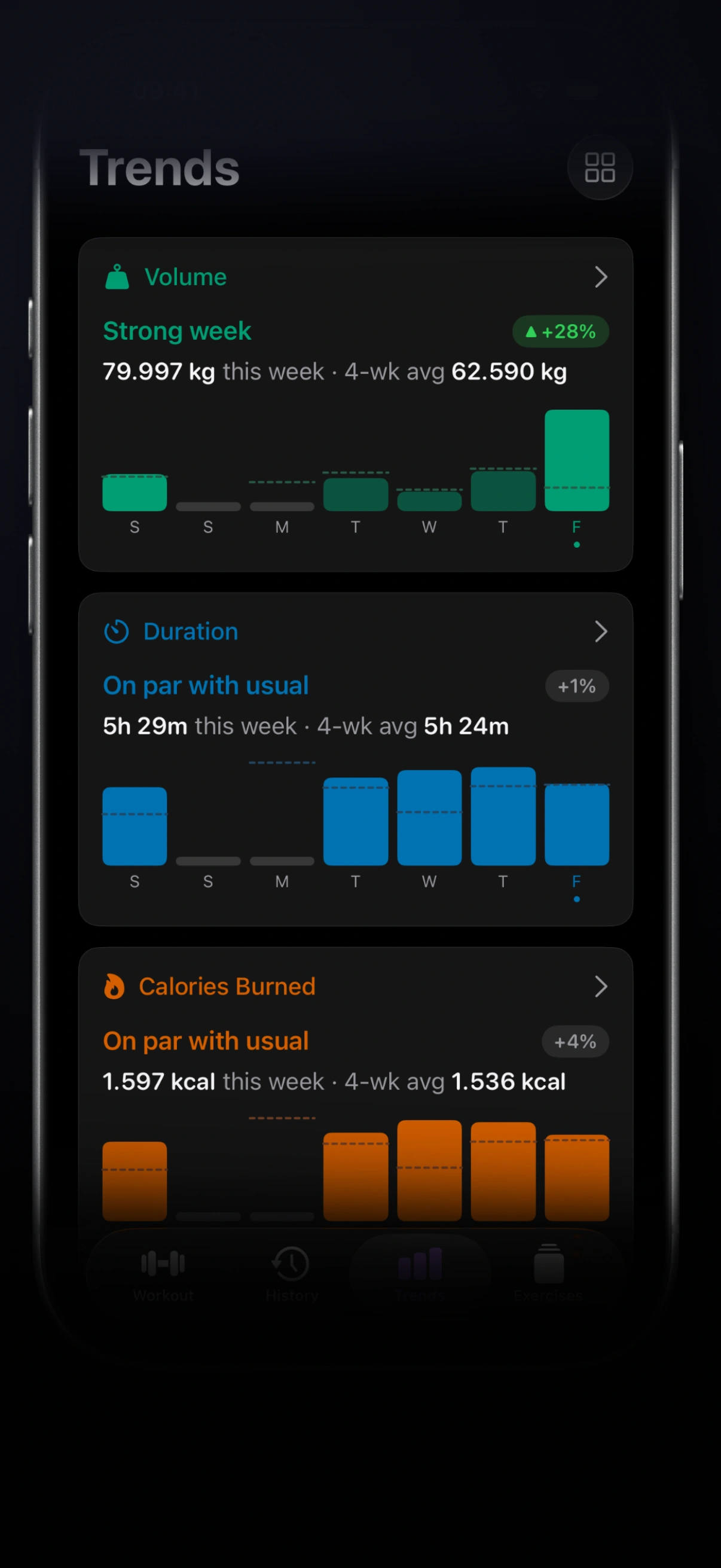
Open the Trends tab and tap the grid icon, or press and hold a widget, to enter edit mode. From there you can:
- Drag widgets into a more useful order.
- Remove cards that are not relevant to the current phase.
- Tap the plus button to add a hidden widget back.
- Restore the default layout if you want to start over.
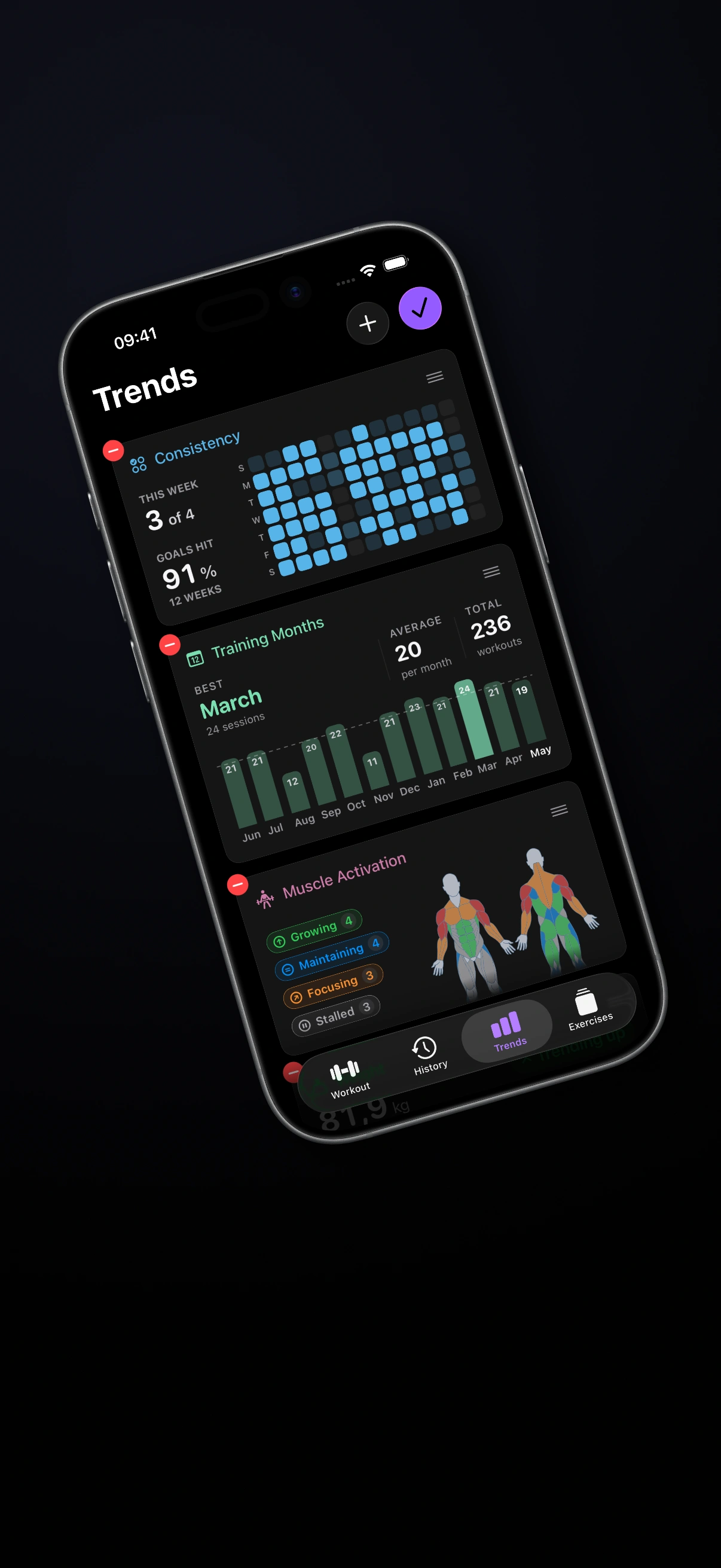
Put the card that answers your main question first. The second and third cards should add context, not repeat the same idea. For example, Volume plus Duration can show whether more total work also meant longer sessions, while Consistency explains whether that week was typical.
Some widgets need enough workout or measurement history before they become informative. That is intentional: a pattern needs repeated data. The Weight widget, for example, needs multiple body-weight entries before it can show a direction. Keep logging consistently and the useful views will fill in over time.
Read trends without overreacting
A dashboard is most useful when you review it at the right frequency.
- Check session history when choosing today’s loads or targets.
- Check weekly activity and consistency once near the end of the week.
- Check body-weight direction and longer training patterns every few weeks.
Avoid changing the plan because one bar is lower or one workout ran long. Current-week workload is more useful when compared with your usual training, and strength progress is more reliable across several comparable sessions. If daily performance varies, use the method in How to Track Strength Progress When Performance Changes Day to Day.
The point of customization is not to watch the dashboard more often. It is to make the occasional review faster and more decisive.
Three dashboard mistakes to avoid
Keeping every widget visible
If everything is important, nothing has priority. Hide cards you are not using now. You can add them back when the goal changes.
Treating related metrics as identical
Volume, duration, consistency, and body weight describe different parts of the training process. One cannot substitute for all the others.
Changing the layout every few days
Give a layout enough time to become familiar. A good default is to keep it for one training block, then reassess when the goal or schedule changes.
Build a dashboard that leads to a decision
Customize workout trends around one current question, keep only the supporting metrics near the top, and review them on a schedule that matches how quickly they can meaningfully change.
Steady keeps detailed workout tracking and progression tools focused on training rather than feeds or engagement. Open Trends, choose the widgets that matter for this block, and let the rest stay out of the way until you need them.
Ready to start applying progressive overload?
Ditch the spreadsheets and complex notes. Join thousands of lifters who use Steady to focus on the workout, track their progress, and automatically know when to add weight.
Download Free for iPhone