How to Share a Workout Program With Your Trainer

To share a workout program with your trainer, send a readable copy of the plan, choose the details relevant to your question, and explain what you want reviewed. In Steady, open the program’s sharing menu, move to Plain Text, and use Copy Text or Share Text. Your trainer can read the exported text without using Steady.
That is useful when your question is bigger than one exercise but smaller than “please rethink my entire training.” Maybe sessions keep running beyond your available time. Maybe a routine changed gradually and you want your trainer to see what you are currently following. A readable export gives that conversation a clear starting point.
Send the plan your trainer needs to see
A series of screenshots can leave important details spread across several messages. Plain text puts the routines and their exercise targets into a format your trainer can read, quote, and reply to.
Steady’s program export includes active routines in their program order, with exercises and working-set targets. Depending on the exercise, those targets can be sets and reps, rep ranges, or durations. You can also choose additional details in the export screen.
Before opening the share menu, check that the program represents the plan you want reviewed. If you have an older version saved alongside the current one, confirm which one you are sending. Give the message a date so it is easy to distinguish from a later revision.
How to export a program as text in Steady
You can start from the program list or the program editor:
- Open the program’s actions. Long-press its card in the program list, or open the saved program in the editor and use the more menu.
- Choose Share. The sharing screen includes a link card and a plain-text card.
- Swipe to Plain Text. Read the preview before sending it.
- Choose the extra details. Include the information that helps answer your question.
- Tap Copy Text or Share Text. Copying lets you paste the program into a message and add context. Sharing opens the system share sheet.
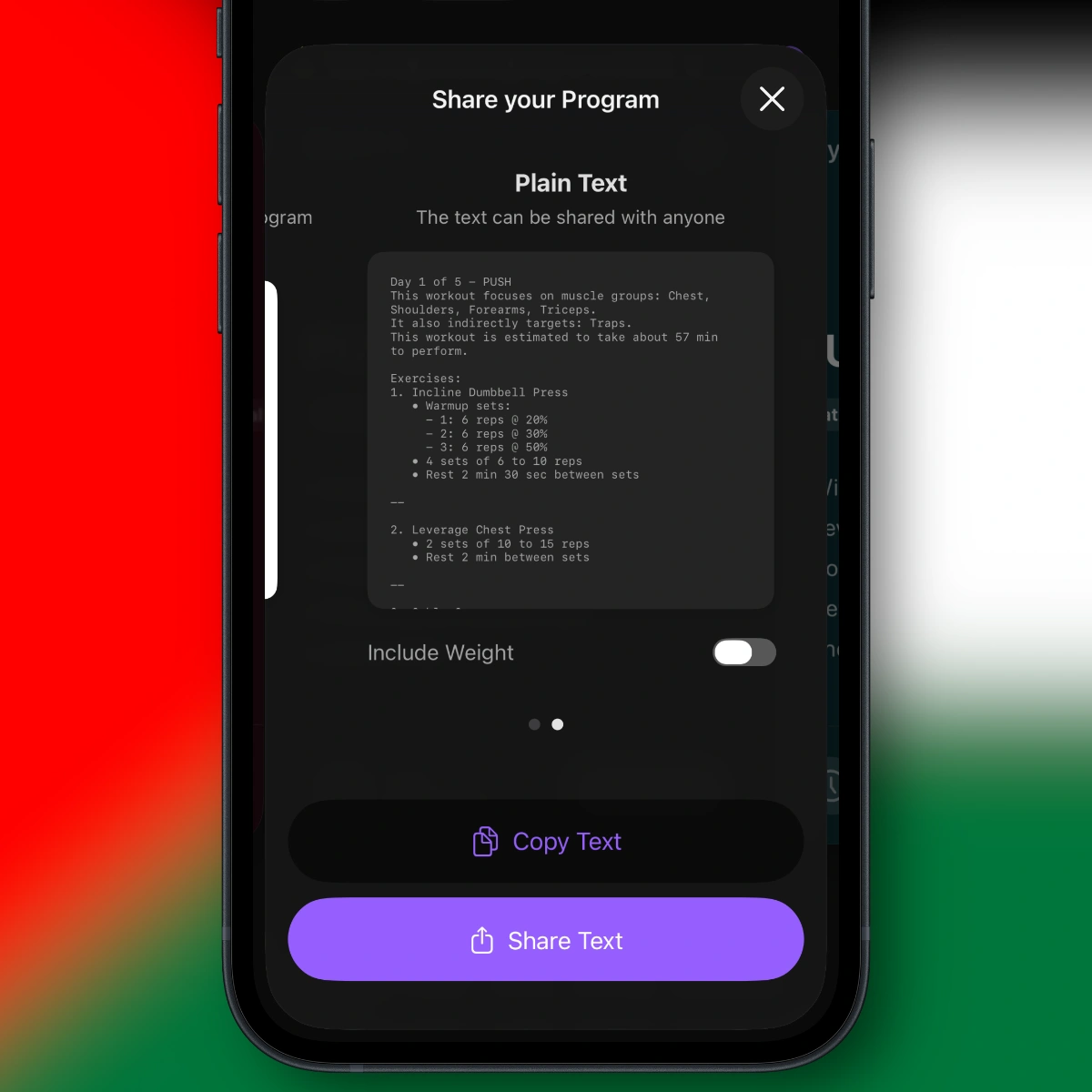 The Plain Text card previews what you are sending. The available detail controls can vary with the app version.
The link card serves a different purpose: it lets another person import the program into Steady. For a trainer who simply needs to read your plan in a message or email, plain text is the direct option.
Choose which details to include
Keep the export relevant to the conversation. The current sharing screen offers these controls:
| Detail | When it helps |
|---|---|
| Include Weight | Your trainer needs to see the program’s current weight targets. |
| Include Warmups | The question involves preparation or how much work is planned before working sets. |
| Include Rest Times | Your trainer is reviewing session timing or the intended rest between sets. |
| Include Exercise Notes | Routine-specific exercise notes explain a choice or constraint. This export option requires Steady Pro. |
For example, a session-length question benefits from rest times and warm-ups. A review of exercise choices may need less detail. Read the preview after changing the switches so you know what the recipient will receive.
Exercise notes here are the notes prescribed within the routine. They are separate from a complete session journal or every note you have ever saved about an exercise. If you use several kinds of notes, this guide to workout notes explains the distinction.
Add the context the program cannot show

A program describes intended training. Your log records what happened. Both can matter when you ask for feedback.
Including weight adds program targets; it does not turn the export into a history of completed sets. If you repeatedly finish fewer reps than planned, or skip the last exercise because time runs out, say so separately. Your trainer cannot infer those details from the prescription alone.
A useful accompanying message might be:
This is my current program as of October 19. I have about 50 minutes per session, but the last three took around 65. I included warm-ups and rest times. Could you review what is taking the time? I usually reach the final exercise, but have been leaving one set unfinished.
That gives the trainer a specific question and a small amount of relevant evidence. You do not need to explain your entire training history in the same message. If the question concerns recent performance, add the relevant session results or a short summary alongside the plan.
Keep the feedback tied to a clear version
Copied text is a snapshot. Editing the program afterward will not update the message you already sent. If you make a meaningful change before your trainer replies, send a fresh export and label it clearly.
When feedback arrives, confirm which changes you will apply and when. That leaves you with a plan you can follow and a record of why it changed, rather than several competing versions scattered through a conversation.
Open your program in Steady, export the details your trainer needs, and add one clear question. A focused handoff makes it easier to get useful advice and bring it back into your next training session.
Ready to start applying progressive overload?
Ditch the spreadsheets and complex notes. Join thousands of lifters who use Steady to focus on the workout, track their progress, and automatically know when to add weight.
Download Free for iPhone