How to Control Your Workout From Apple Watch
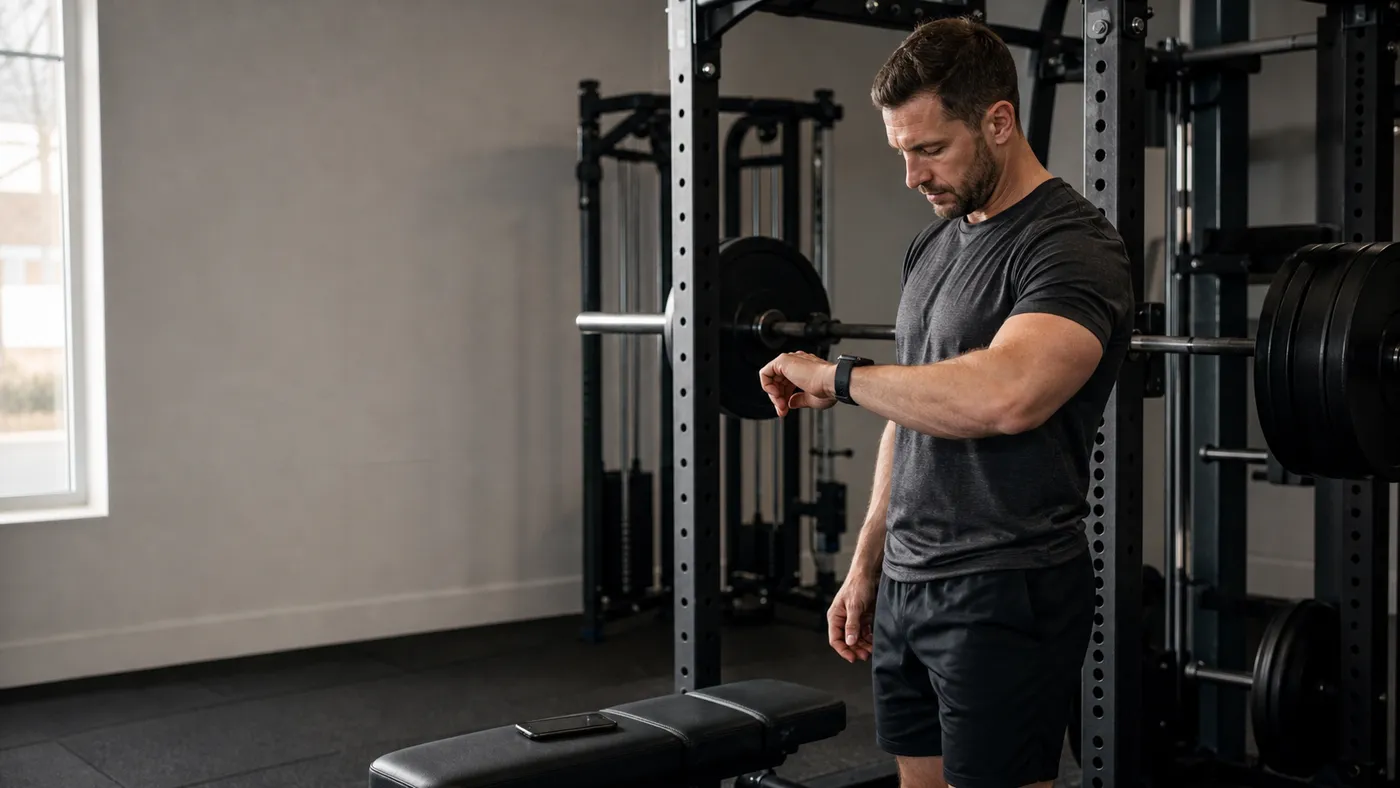
When you are running a workout in Steady, the main reason to use Steady on Apple Watch is to complete each set from your wrist—and, when needed, adjust its weight or reps before you record it. It also offers live controls for pausing the session, adding a warm-up, or finishing. The Watch app is another way to work with that same active Steady workout; it does not replace the iPhone app or make it less useful.
That distinction matters in a real gym. You may keep the iPhone running Steady in a bag while you train, but still need to change one number after a set, add a set you forgot to plan, or pause when a conversation starts. The same session can be managed from either device, so you can use the screen that is most convenient at that moment.
Steady’s Apple Watch controls make those short actions available on your wrist. Bigger edits and planning remain available on the iPhone, where they have the space they need.
What you can control from your wrist
During an active Steady workout, the Watch gives you quick controls to:
- pause or resume the workout
- finish or discard the active session, with a confirmation first
- expand the set list for the current exercise
- edit a set’s weight, reps, or duration
- mark a set complete or mark it incomplete again
- add a warm-up set or another working set
- delete an individual set when the session changes
The useful theme is live-session cleanup. Perhaps you did an unplanned warm-up, used a slightly different dumbbell, or noticed you marked set two complete when it was really set three. Those are small corrections, but leaving them until later makes the workout record less trustworthy.
The Watch is especially handy during supersets, when you are moving between stations, or when the phone is simply inconvenient to grab. It lets you correct what happened while the context is still obvious.
Use the device that suits the next action
The Watch is useful for a deliberately narrow action: look down, make the change, and get back to the set. When the iPhone is the more convenient screen, use that instead—the workout record stays the same.
For example:
- You finish a set and notice the reps differ from the target.
- Open that set on the Watch and change the number before completing it.
- Start your rest and move on rather than making a mental note for later.
Or say your warm-up exposed a stiff shoulder and you decide to add one lighter set. Add it from the expanded set list, perform it, then continue. The log follows the actual session instead of the version you wrote before leaving home.
 The most useful training controls are the ones that solve a quick problem without turning rest into screen time.
You can also finish the session from the Watch when that is the device you are using. If you need to abandon a false start or an accidental session, discard is there too—but both finish and discard ask for confirmation, so a stray tap does not decide your workout.
How to use Steady’s Watch controls
The exact layout stays intentionally simple:
- Start or continue a workout with Steady and keep your iPhone nearby.
- On the Watch, use the workout controls to pause or resume when needed.
- Tap the set progress area to expand the current exercise’s set list.
- Tap a set to adjust its values, or use its completion control to fix its status.
- Add a warm-up or working set only when it reflects what you actually did.
- At the end, choose Finish from the controls; use Discard only for a session you do not want to keep.
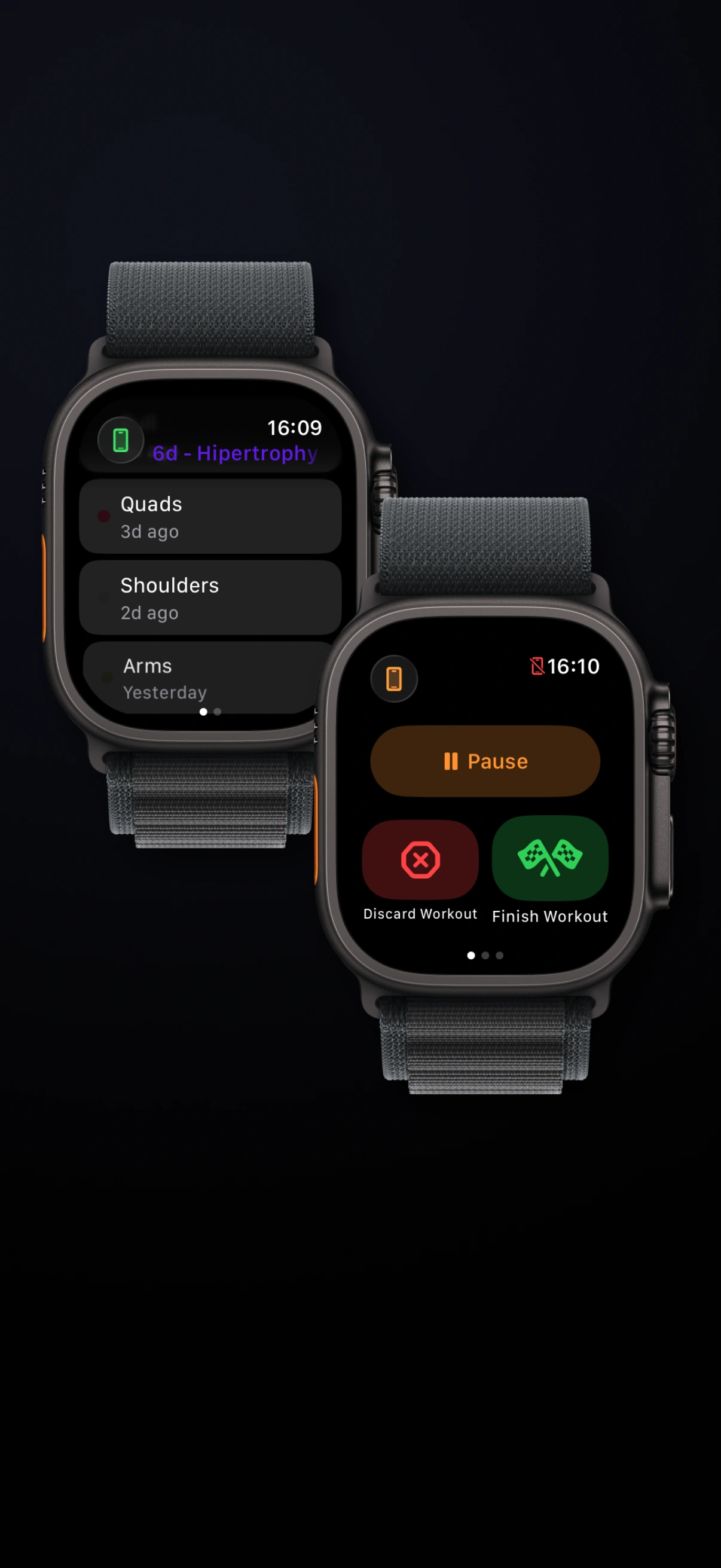 The Watch controls keep the session-level actions one swipe away while your phone stays nearby.
The expanded set list is the part that makes the Watch more than a completion button. You can work with a specific set instead of only the currently active one. That is useful for a late correction: undo a set you checked by mistake, update its value, or add the extra set you actually performed.
What still happens on the iPhone
The Apple Watch app is a companion, not a standalone gym planner. Keep the iPhone nearby during the workout: the Watch relies on that connection for live workout changes. If the phone is not reachable, the Watch should not be your place to make edits.
Some actions still happen on the iPhone: rebuilding a routine, replacing several exercises, reviewing detailed progression, or deciding how a training block should change. Those workflows need a larger screen and more attention. The same goes for effort context: a Watch can record a quick correction, but it cannot decide whether a hard set was limited by sleep, technique, or an irritated joint.
That boundary keeps each surface focused. The useful question is simple: which device is most convenient for this action, and does the change need a broader editing workflow? Use the Watch or phone for the quick changes either can handle; switch to the phone when the task needs its larger interface.
For the broader setup, see Steady for Apple Watch, including how the companion app fits alongside your iPhone workout.
Make the log match the session
Good workout tracking is not about touching a screen after every rep. It is about making the record accurate enough to guide the next workout.
For small, time-sensitive adjustments, use the Apple Watch or iPhone—whichever is more convenient. Use the iPhone for planning and deeper review. That split lets Steady stay focused: your training keeps moving, and your history still reflects the work you actually did.
Ready to start applying progressive overload?
Ditch the spreadsheets and complex notes. Join thousands of lifters who use Steady to focus on the workout, track their progress, and automatically know when to add weight.
Download Free for iPhone