How to Customize Steady’s Tabs

To customize Steady’s bottom navigation, open Settings → Customize Tabs and choose which screens to display. You can enable up to four optional tabs alongside Workout. Screens you hide remain accessible from Settings, so you can simplify navigation without giving up the tools you use occasionally.
The useful question is which screens you reach for during a normal training week. If you check last session’s numbers before choosing a load, History deserves easy access. If you review longer-term patterns at home, Trends might earn a place too. Your navigation can reflect that difference.
Start with the task you repeat
Think back to your last few workouts. Where did you go after opening the app, and what were you trying to do?
- Check a previous session: keep Workout History visible.
- Review patterns across sessions: give Your Trends a place.
- Look up or browse exercises: keep Exercise Library handy.
- Record and review measurements: consider Body Measurements.
- Change preferences frequently: make Settings a tab.
These are choices about access, rather than a checklist you need to complete. A screen can be useful without belonging in the bottom bar. For example, checking body measurements once a month and checking workout history every session are different habits; they do not need identical placement.
Keep the decision concrete: “I open History to compare my last two sessions” is a better reason than “I should probably look at more data.”
How to change the tabs
- Open Settings. If it is already a bottom tab, tap it. Otherwise, open it from the profile icon at the top of the Workout screen.
- Choose Customize Tabs. The Display as tabs section lists the optional screens.
- Turn on the screens you want nearby. Turn off the ones you can reach less often through Settings.
- If a switch is unavailable, free a place first. Steady allows up to four optional tabs at once. Disable one before enabling another.
- Return to your workout and try the layout. Choose based on whether your usual next action is easy to find.
Workout stays as the main training destination. The four-tab limit applies to the optional screens, so it does not mean the entire bar is limited to four items. These controls choose which tabs appear; they do not provide drag-to-reorder navigation.
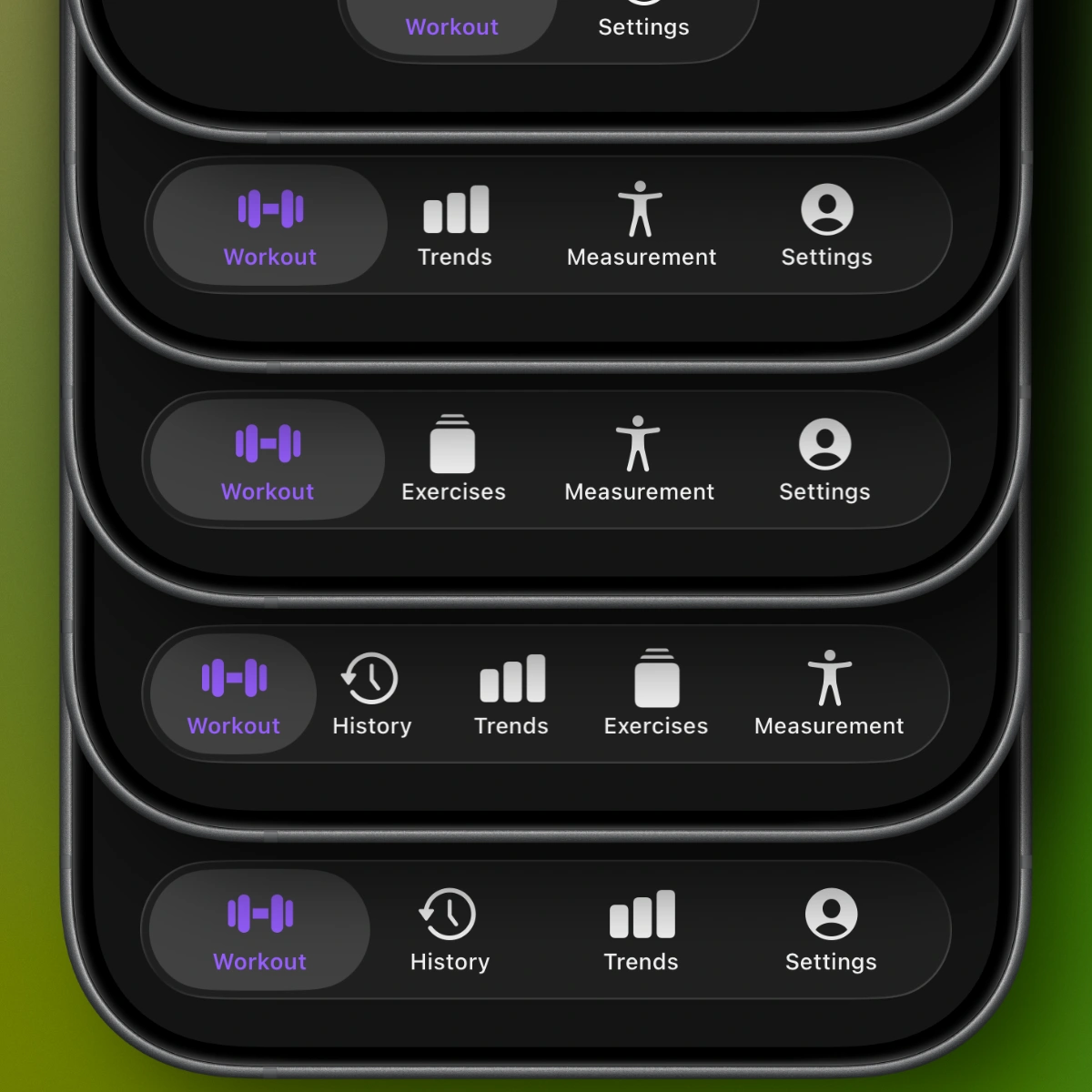 The Steady 2.2 release image shows different tab combinations. The visual treatment can vary with your iOS version.
Tab customization is available without Pro. Choosing a Body Measurements tab does not change the separate Pro requirement for that feature.
Try a layout that answers a real need
You do not need a perfect arrangement before your next session. Pick a starting point and see whether it supports the way you already train.
For checking what happened last time: enable History and Trends. History helps you return to a particular session; Trends serves the broader review. Leave the other optional tabs hidden if you rarely open them. You can still find them in Settings.
For frequent exercise browsing: keep Exercises alongside History. This can suit a phase when you are getting familiar with the exercise library and regularly checking previous sessions. It does not require changing your routine or browsing for something new every workout.
For regular measurement reviews: keep Measurement and Trends nearby if you use those tools. Add History if you also compare individual sessions. There is no need to use all four optional places just because they are available.
These are navigation examples, not training prescriptions. The right combination is the one that makes your repeated tasks straightforward.
Keep occasional tools available without checking them constantly
Hiding a tab moves its access point to Settings. It does not remove that screen’s records. If you hide Settings itself, the Workout screen’s profile icon gives you a route back.
This is useful when a screen earns attention occasionally. You might review trends after the week’s final session, while keeping your between-set attention on logging and resting. If you want to make that review more useful, see how to customize your workout trends.
Give a layout a few sessions before changing it again. Notice repeated detours: if you keep opening Settings for the same hidden screen, bring that tab back. If a visible tab goes untouched, it can move out of the bar.
Reset when your needs change
Reset to Defaults restores the optional History, Trends, Exercises, and Measurement tabs and hides the Settings tab. It resets the tab selection, rather than your training history.
You can also make a smaller change whenever your habits shift. Open Steady, choose the screens you actually reach for, and let the next few workouts show whether the arrangement works for you.
Ready to start applying progressive overload?
Ditch the spreadsheets and complex notes. Join thousands of lifters who use Steady to focus on the workout, track their progress, and automatically know when to add weight.
Download Free for iPhone