How to Save Favorite Exercises in Steady

To save a favorite exercise in Steady, open its details and tap the star. Then choose Favorites in the exercise library’s type filter to see your shortlist. You can narrow that list further by muscle, equipment, or search. Favorite Exercises arrived in Steady 1.5 and gives you a place to keep movements you want to find again, including ones you have not logged yet.
A large exercise library is useful when you need options. When you already know which options matter to you, a smaller personal list is easier to use. The trick is giving that list a clear purpose, so it does not become another collection to scroll through.
What deserves a star?
Think of a favorite as a bookmark: “I want to come back to this exercise.” It might be a movement you use regularly, an option your trainer asked you to look at, or something you want to evaluate during a future session.
You do not need to star every exercise in your program. Start with a few that you repeatedly search for outside the normal flow of a saved routine. A useful test is: Would saving this spare me a search I am likely to repeat?
For example, you spot an exercise in the library that matches a machine at your gym. You are not changing today’s workout, but you want to ask your trainer about it later. Starring it preserves that intention without pretending you have already performed it or adding it to a session prematurely.
That is the value of a deliberately chosen shortlist: it can hold future interest as well as current staples.
Add and find favorites in Steady
Use the star on an exercise’s detail screen to add it to Favorites. Tap it again when you no longer want the bookmark. Where the exercise action menu offers it, Add to Favorites and Remove from Favorites provide the same choice.
To browse the result:
- Open the exercise library in Steady.
- Open the exercise type filter and choose Favorites.
- Select a muscle or equipment filter if you want a smaller group.
- Use search when you remember part of the name.
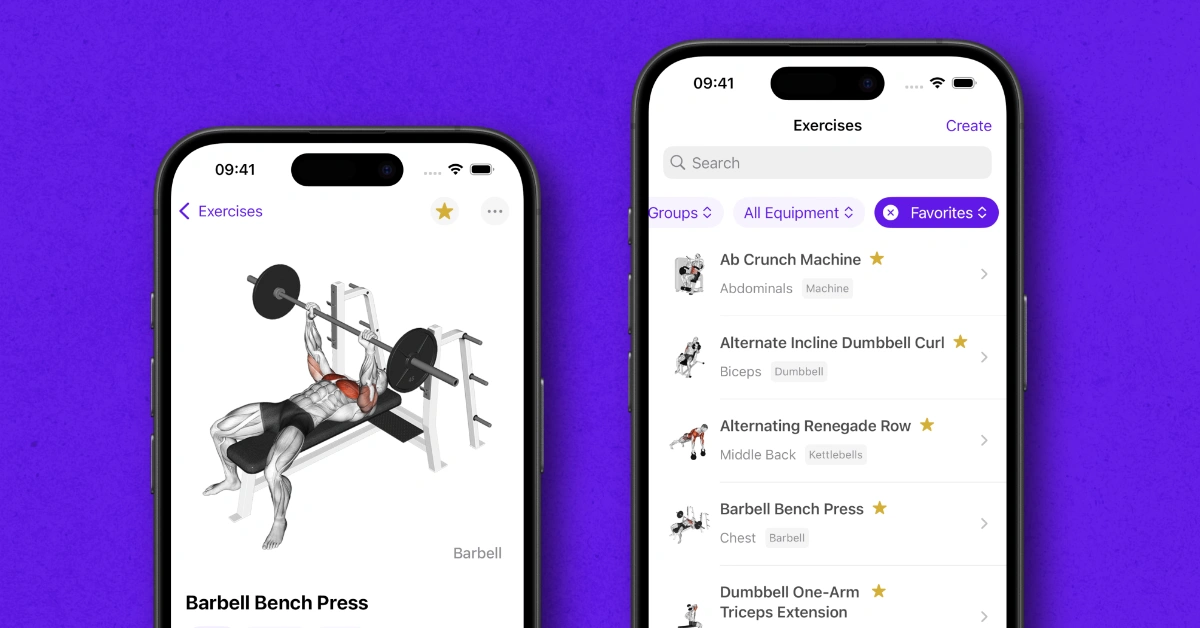
You can do this browsing before training. Saving an interesting movement does not commit you to using it in your next workout; it simply makes it easier to return to when you have a reason.
Give each list a different job
Favorites, training history, and routines answer different questions:
- Favorites: Which exercises have I chosen to keep handy?
- Performed: Which exercises have I actually logged?
- A saved routine: What exercises and targets am I planning to train together?
A movement can belong to all three, but it does not have to. An exercise you tried once might appear in Performed without deserving a permanent place in Favorites. A new bookmark can belong in Favorites before it has any history.
If your question is “What was that exercise I did a few weeks ago?”, the Performed filter is the more relevant starting point. If your question is “Where is that exercise I wanted to revisit?”, use Favorites.
 Equipment filters can turn a general shortlist into the options relevant to the station you are using.
Why is a favorite missing?
The Favorites filter works together with the other library filters. A starred exercise can be absent from the visible results because a muscle selection, equipment selection, or search term excludes it. Equipment disabled in your library settings also affects the list.
Before assuming the bookmark was lost:
- Clear the search field.
- Remove active muscle and equipment restrictions.
- Check whether you disabled the exercise’s equipment in the library settings.
- Find the exercise again and check its star.
This distinction matters in a busy gym. A list filtered to cable equipment is meant to hide other equipment, even when you have starred those exercises. A shorter result is not necessarily your entire Favorites collection.
Keep the shortlist useful over time
Review your favorites when their purpose changes. Perhaps you have finished trying a movement, changed gyms, or stopped needing a bookmark because the exercise is now easy to find in your regular routine. Remove the star when it no longer helps.
There is no ideal number of favorites. The practical limit is whether opening the list still saves you time. If you cannot tell why half the entries are there, a quick cleanup is more useful than adding more categories in your head.
A bookmark also does not decide which movement fits a session or what load to use. Make those decisions from your training goal and actual records. Let Favorites handle the smaller job of finding the exercise.
Open Steady, star a few movements you keep searching for, and try the Favorites filter. Keep the list intentional, and it becomes a useful shortcut alongside your routines and workout history.
Ready to start applying progressive overload?
Ditch the spreadsheets and complex notes. Join thousands of lifters who use Steady to focus on the workout, track their progress, and automatically know when to add weight.
Download Free for iPhone